
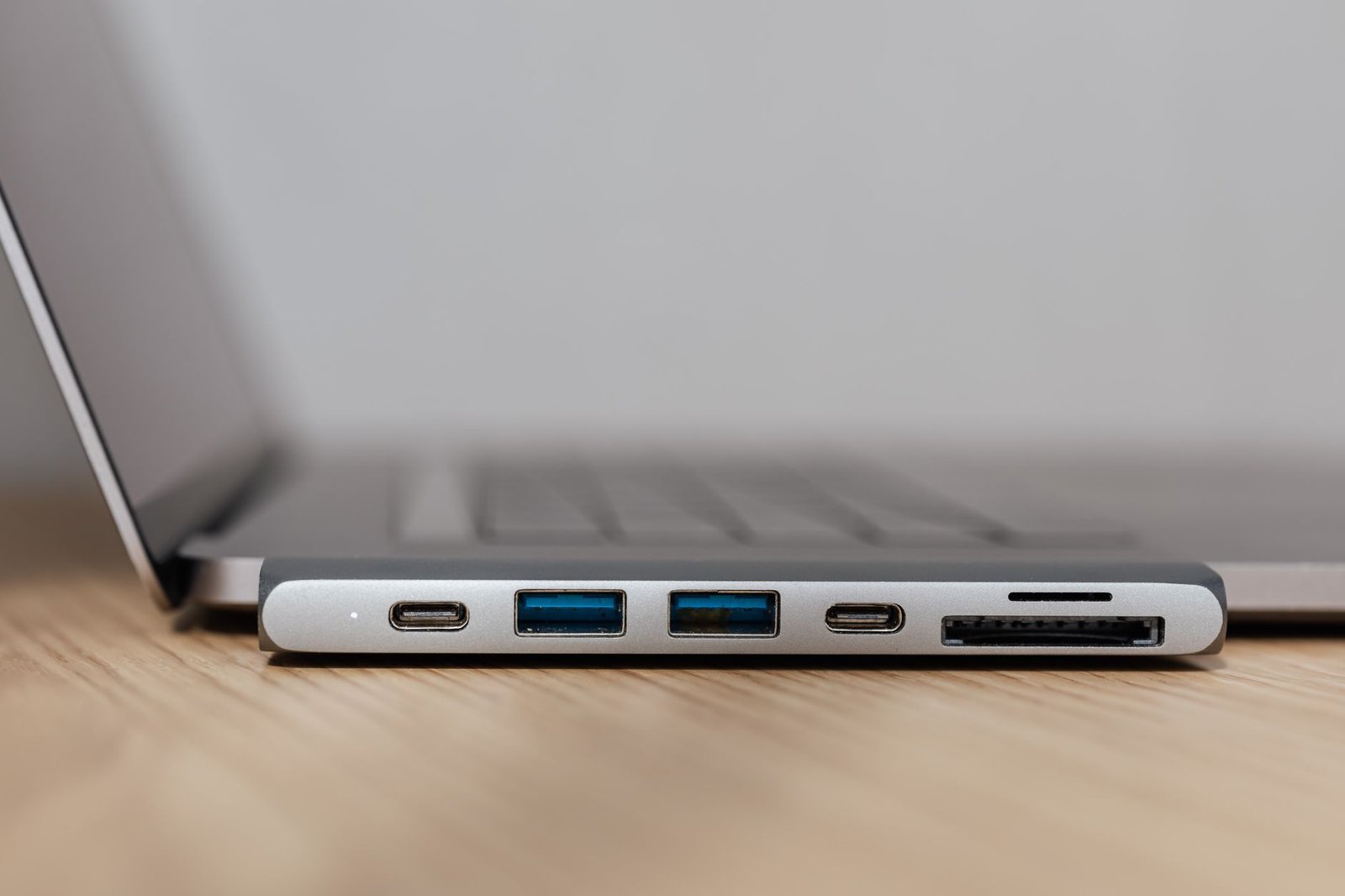
Selecting the best USB-C hubs for MacBook Pro in 2026 is crucial for professionals and creatives who demand peak performance and versatility. As MacBooks continue to streamline their ports, a high-quality hub becomes an indispensable tool, bridging the gap between legacy devices and modern workflows. This guide cuts through the noise, highlighting seven exceptional USB-C hubs that offer robust connectivity, fast data transfer, and essential power delivery, ensuring your MacBook Pro experience is unhindered and productive.
We’ve meticulously evaluated numerous options to bring you hubs that excel in durability, port selection, and overall value, specifically tailored for the demanding needs of MacBook Pro users in 2026.
Key Takeaways
- Choose hubs with ample USB-A and USB-C ports for broad device compatibility.
- Prioritize hubs offering high-speed data transfer rates (10Gbps+) for efficient file management.
- Ensure your chosen USB-C hub supports Power Delivery (PD) for simultaneous charging and peripheral use.
- Look for hubs with dedicated HDMI or DisplayPort outputs for multi-monitor setups.
- Consider the build quality and thermal management for sustained, reliable performance.
Why MacBook Pro Users Need a 2026 USB-C Hub
Apple’s strategic shift towards USB-C and Thunderbolt ports on MacBook Pro models, while streamlining design, has introduced new connectivity hurdles for many users. This port consolidation, championed for its versatility, often means a scarcity of physical connections for essential peripherals and legacy devices. A high-quality USB-C hub becomes indispensable for those who rely on their MacBook Pro for demanding tasks, transforming potential frustration into seamless workflow integration.
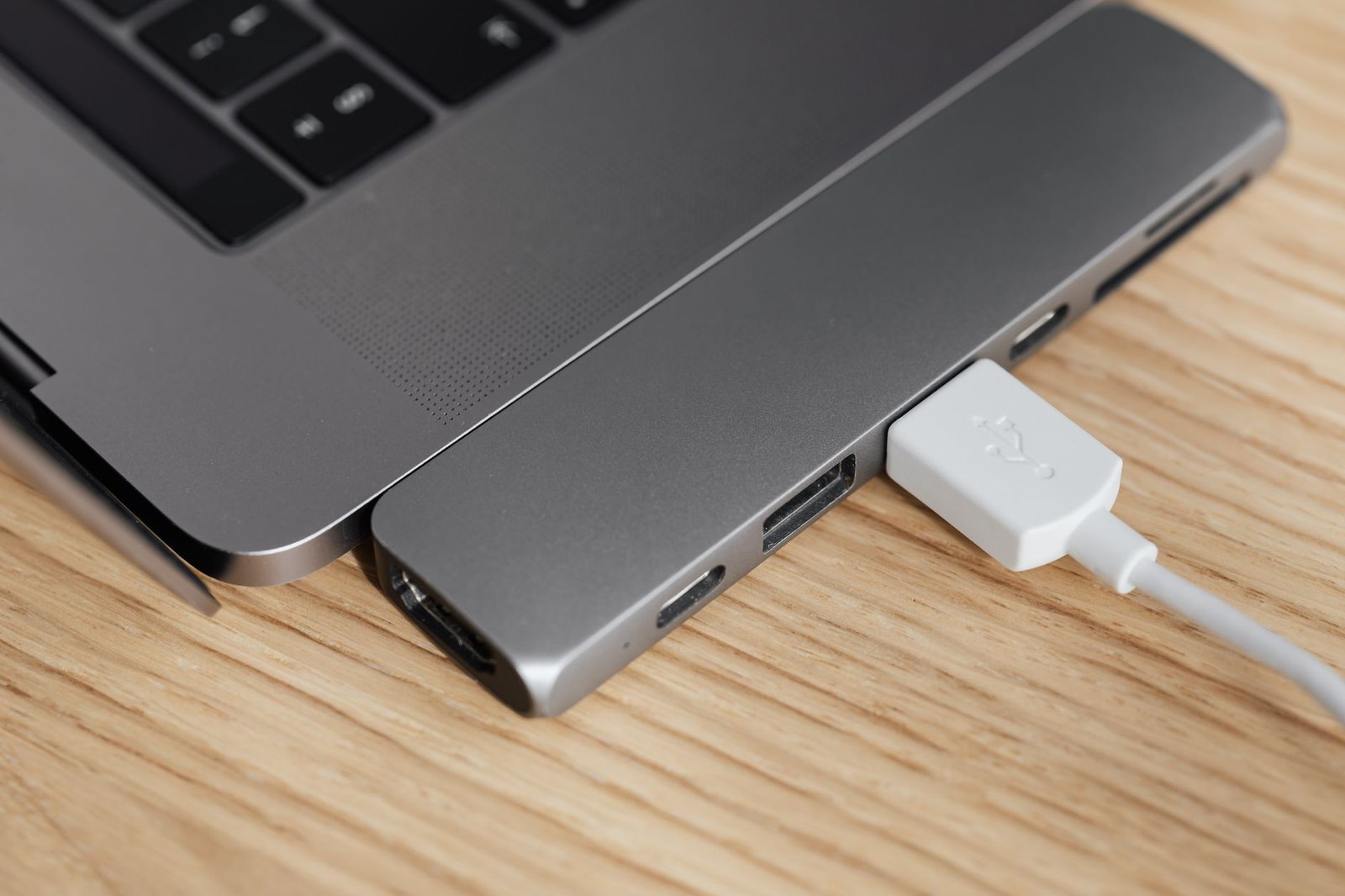
The core challenge lies in balancing the sleek, port-less aesthetic of modern MacBooks with the practical needs of a diverse peripheral ecosystem. Users frequently encounter situations where multiple essential connections are required simultaneously, such as external monitors, external hard drives, SD cards, and wired Ethernet. Without an adequate solution, connecting these devices can become a cumbersome process involving multiple adapters or constant swapping, significantly impacting productivity.
Expanding Your MacBook Pro’s Capabilities
A dedicated USB-C hub acts as a central command center, multiplying your MacBook Pro’s connectivity options and simplifying your workspace. These accessories are designed to offer a variety of ports, ensuring compatibility with both current and older technology. For power users, the benefits extend beyond mere convenience, directly impacting performance and multitasking capabilities.
When selecting a USB-C hub, prioritize features that align with demanding workloads. Consider these crucial elements:
- Data Transfer Speeds: Look for Thunderbolt 4 or USB 4 compatibility, offering up to 40 Gbps for rapid file transfers.
- Power Delivery (PD): Ensure sufficient wattage (e.g., 100W PD passthrough) to charge your MacBook Pro while connected to the hub.
- Display Outputs: Support for multiple high-resolution displays (4K@60Hz or 8K@30Hz) is critical for visual multitasking.
- Port Selection: A comprehensive mix including USB-A, HDMI, DisplayPort, SD/microSD card readers, and Gigabit Ethernet is ideal.
- Build Quality: Durable aluminum construction often indicates better heat dissipation and longevity.
- Stable Networking: An integrated Ethernet port provides a more reliable connection than Wi-Fi for large downloads or stable video calls.
For power users juggling multiple 4K displays, external SSDs exceeding 1000 MB/s, and demanding network operations, a robust Thunderbolt 4 hub is essential. This ensures that the hub doesn’t become a bottleneck, maintaining the high performance expected from a premium MacBook Pro setup in 2026.
Anker PowerExpand Elite 13-in-1 Thunderbolt 4 Hub
The Anker PowerExpand Elite 13-in-1 Thunderbolt 4 Hub stands out as a premium option for power users demanding comprehensive connectivity for their MacBook Pro. Its core strength lies in its robust Thunderbolt 4 implementation, offering a blistering 40Gbps data transfer rate. This ensures lightning-fast access to external storage and seamless multitasking. Crucially, Thunderbolt 4 is backward compatible with Thunderbolt 3 and USB 4 devices, making it a future-proof investment.
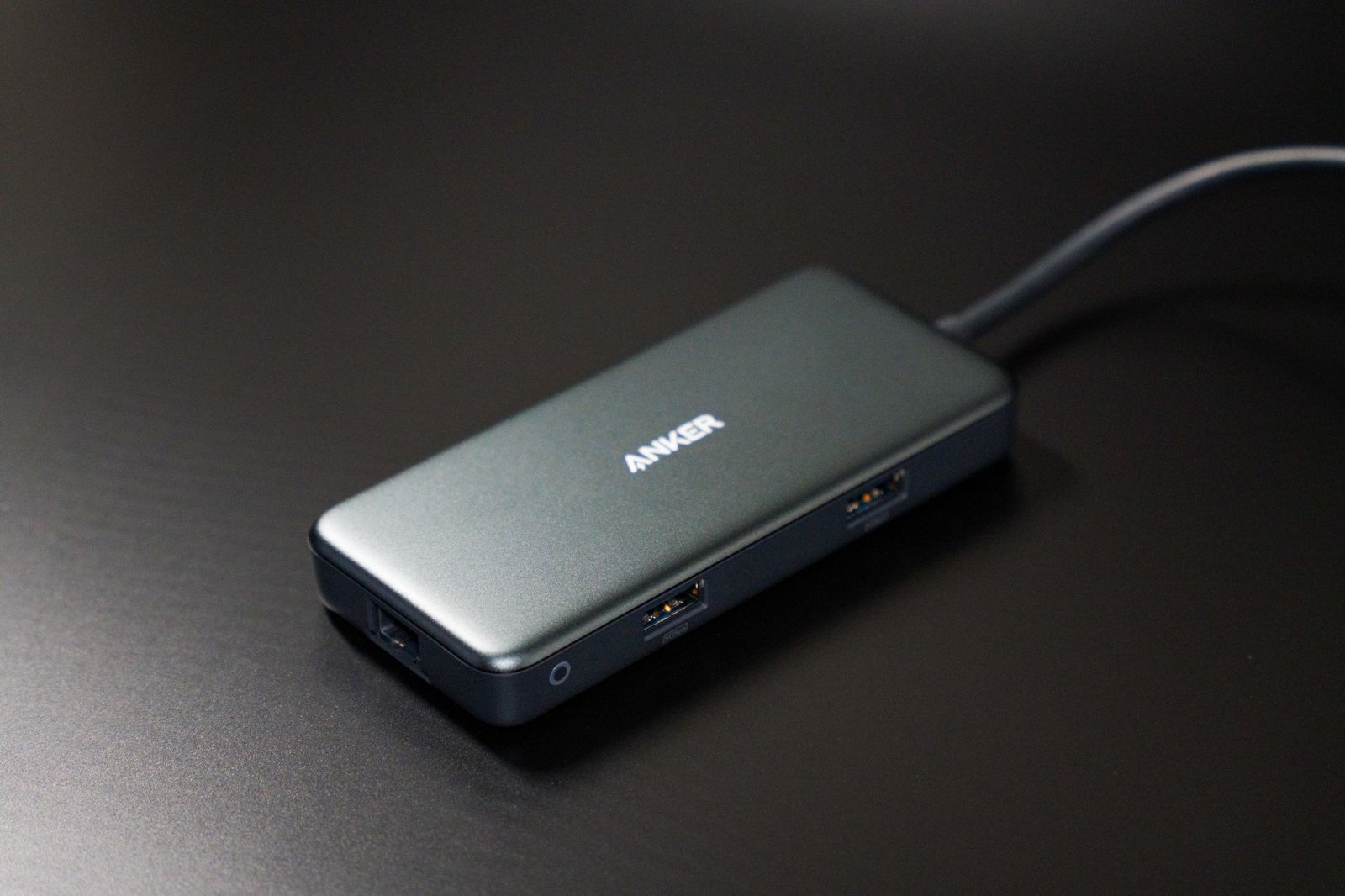
Its 13-in-1 design addresses nearly every conceivable peripheral need. You’ll find an array of ports: multiple USB-C ports (including one for upstream connection), several USB-A ports, dual HDMI 2.0 ports, a DisplayPort 1.4, a Gigabit Ethernet port, and dedicated SD and microSD card readers. This extensive selection means you can connect multiple high-resolution displays, high-speed SSDs, wired networks, and card readers simultaneously without compromise.
Performance and Display Capabilities
In terms of performance, the PowerExpand Elite excels. Data transfer speeds on its Thunderbolt 4 ports reach the maximum 40Gbps, enabling rapid file transfers from NVMe SSD enclosures. It supports dual displays up to 4K@60Hz or a single display up to an astonishing 8K@30Hz, providing ample screen real estate for demanding creative workflows. The hub also delivers substantial Power Delivery, capable of outputting up to 100W to charge your MacBook Pro while simultaneously powering connected devices.
Build and Connectivity Comparison
Anker’s commitment to quality is evident in the hub’s robust aluminum construction, which aids in thermal dissipation during intensive use. The sleek, minimalist design complements the aesthetic of modern MacBooks. Its compact footprint, considering the sheer number of ports, is also a significant advantage for desk organization. Below is a comparison of its key specifications against other high-end hubs.
| Feature | Anker PowerExpand Elite 13-in-1 | OWC Thunderbolt Dock (Example) | Caldigit TS4 (Example) |
|---|---|---|---|
| Thunderbolt 4 Ports | 2 (1 upstream, 1 downstream) | 2 (1 upstream, 1 downstream) | 2 (1 upstream, 1 downstream) |
| Max Data Transfer | 40Gbps | 40Gbps | 40Gbps |
| Display Output | 2x HDMI 2.0, 1x DP 1.4 | 2x Thunderbolt 4/USB4 (DP Alt Mode) | 1x DisplayPort 1.4 |
| Max Single Display | 8K@30Hz | 6K@60Hz | 8K@30Hz |
| Max Dual Display | 4K@60Hz | 2x 4K@60Hz | 2x 4K@60Hz |
| Ethernet | 1Gbps | 2.5Gbps | 1Gbps |
| Power Delivery (Upstream) | 100W | 98W | 98W |
Pros: Extensive port selection including dual HDMI and DisplayPort, high 8K display support, robust 100W PD, excellent build quality. Cons: Premium price point, larger physical size compared to basic hubs.
CalDigit TS4 Thunderbolt 4 Dock
For the power user who demands uncompromising performance and durability, the CalDigit TS4 Thunderbolt 4 Dock stands out. Crafted from premium aluminum, its robust build quality not only feels substantial but also contributes to effective heat dissipation during demanding tasks. This dock is engineered to be a long-term fixture on your desk, supporting your workflow for years to come.
Connectivity is where the TS4 truly shines, offering an expansive array of ports. You get multiple Thunderbolt 4 ports (including one for host connection), a generous number of USB-A 3.2 Gen 2 ports, a 2.5Gbps Ethernet port for reliable networking, and both front and rear audio jacks. A dedicated DisplayPort 1.4 allows for direct monitor connection, complementing the Thunderbolt ports’ display capabilities. This comprehensive suite ensures you can connect virtually any peripheral without compromise.
Multi-Display Powerhouse
The TS4 excels in multi-display setups, supporting up to two 6K displays at 60Hz via its Thunderbolt 4 ports or a single 8K display. This makes it an ideal companion for creative professionals and developers who rely on extensive screen real estate for their work. The seamless integration means you can drive high-resolution monitors with ease, enhancing productivity.
Charging and Performance
With a massive 98W of Power Delivery, the CalDigit TS4 can charge even the most power-hungry 2026 MacBook Pro models at full speed, eliminating the need for a separate laptop charger. Real-world benchmarks show minimal performance degradation, even when multiple high-bandwidth devices are connected simultaneously. Compared to other Thunderbolt 4 docks, the TS4 consistently offers superior port selection and power output, solidifying its position at the top tier of USB-C hubs MacBook Pro users will consider.
Expert Tip: When connecting multiple high-resolution displays, ensure your MacBook Pro model supports the required bandwidth for each. The TS4 provides the necessary output, but the laptop itself is the ultimate gatekeeper for display capabilities.
Belkin Connect Pro Thunderbolt 4 Dock
The Belkin Connect Pro Thunderbolt 4 Dock stands out with its robust build and thoughtful design, catering specifically to power users who demand maximum connectivity without compromising performance. Its sleek, minimalist aesthetic complements any modern workspace, while the substantial heft suggests premium construction. This dock isn’t just about looks; it’s engineered for seamless integration into demanding workflows, making it a top contender among 2026 USB-C hubs for MacBook Pro users.
Comprehensive Connectivity and Performance
Equipped with two Thunderbolt 4 ports (one upstream, one downstream), the Connect Pro offers exceptional versatility. You’ll find a total of ten ports, including three USB-C (10Gbps), two USB-A (10Gbps), an HDMI 2.0 port supporting up to 4K@60Hz, a Gigabit Ethernet port, and audio in/out jacks. Data transfer speeds are blistering, easily handling large file transfers via its USB-C and USB-A 3.2 Gen 2 ports, and the dual video output capability ensures smooth operation with external displays.
Power delivery is another strong suit. The dock provides up to 90W Power Delivery to your connected MacBook Pro, allowing you to charge your laptop at full speed even while it’s powering multiple peripherals and high-resolution displays. This simultaneous charging capability is crucial for maintaining productivity throughout the workday, eliminating the need for separate chargers.
Setup is refreshingly straightforward: simply connect the dock to your MacBook Pro with the included Thunderbolt 4 cable. Belkin’s typically user-friendly approach means minimal configuration is required, allowing you to get back to work almost instantly. This dock is ideal for creative professionals, developers, and anyone who frequently connects multiple high-bandwidth devices and external monitors to their MacBook Pro, consolidating all your connections into a single, reliable hub.
Satechi Type-C Aluminum Multi-Port Adapter
Satechi consistently delivers accessories that feel like natural extensions of Apple hardware, and the Type-C Aluminum Multi-Port Adapter is no exception. Its precisely milled aluminum casing boasts a brushed finish that perfectly complements the aesthetic of any MacBook Pro, making it a visually seamless addition to your setup. This adapter is designed for the modern professional who values both form and function, offering a robust selection of ports without compromising on style.
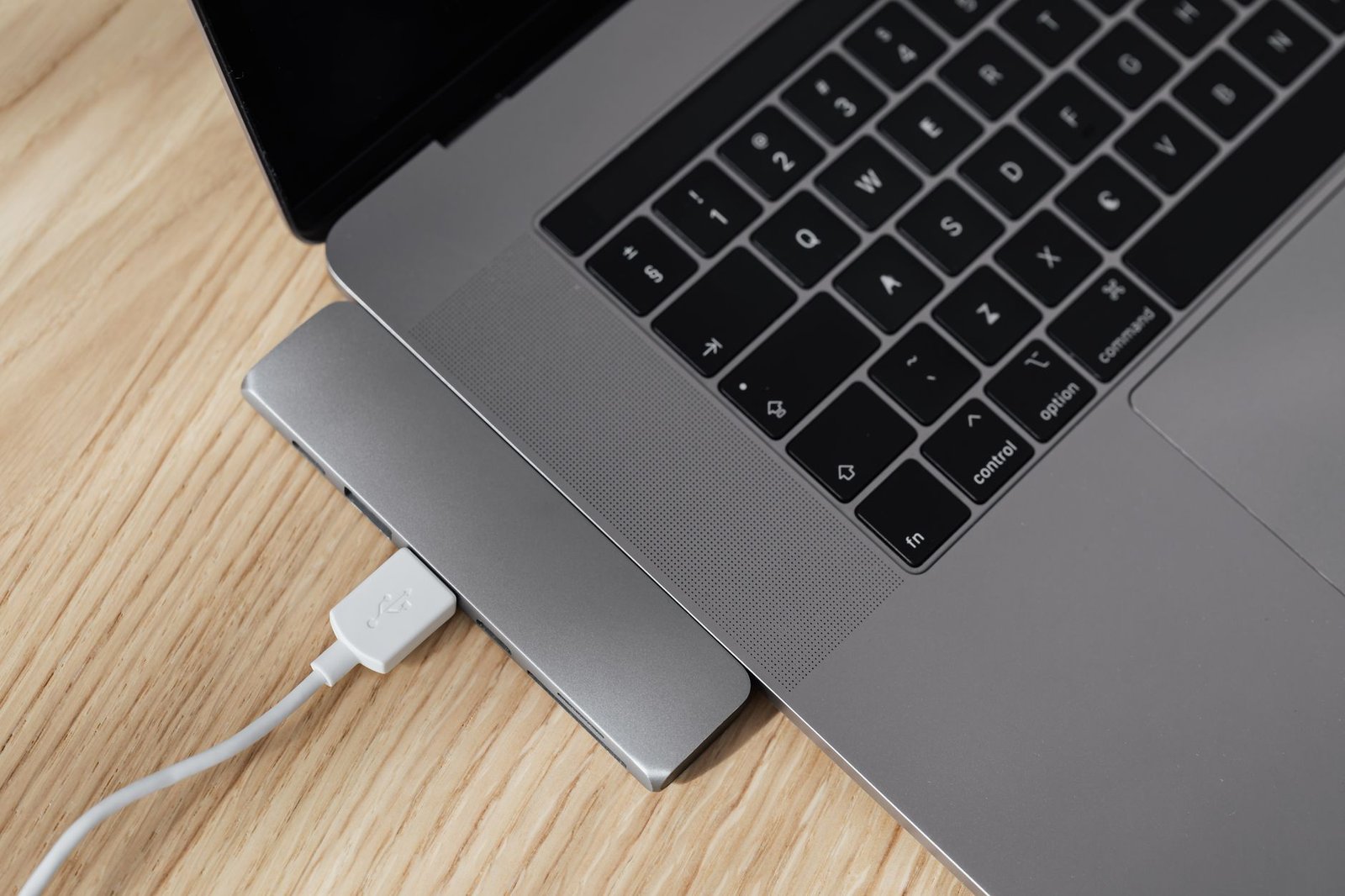
For everyday productivity, this hub offers an excellent array of essential connections. You can easily connect to external displays via the 4K HDMI port, power up your MacBook Pro with USB-C Power Delivery, and connect older peripherals with the two USB-A ports. Furthermore, integrated SD and microSD card readers provide convenient access to your media files, and the Gigabit Ethernet port ensures a stable wired internet connection, a godsend when Wi-Fi falters. These features make it ideal for managing documents, browsing the web, and transferring files from external drives without needing multiple dongles.
Connectivity Essentials
The Satechi adapter covers the bases for most daily workflows:
- 1 x 4K HDMI Output
- 1 x USB-C Power Delivery (up to 100W pass-through)
- 2 x USB-A 3.0 Ports
- 1 x Gigabit Ethernet Port
- 1 x SD Card Reader
- 1 x microSD Card Reader
Its compact size and durable build make it a strong contender for professionals on the move. Tossing this into your laptop bag adds minimal bulk while providing the flexibility to adapt to various workspace environments, from coffee shops to conference rooms. For budget-conscious users seeking a blend of essential ports and premium build quality, this Satechi USB-C hub MacBook Pro accessory represents significant value at its typical 2026 price point of around $60-$70.
However, users with extremely demanding bandwidth needs or those requiring dual 4K display setups might find its capabilities limited. The single HDMI port and USB 3.0 speeds are sufficient for standard tasks but won’t handle high-refresh-rate gaming monitors or simultaneous intensive data transfers across multiple high-speed devices. For such specialized use cases, a more advanced hub with Thunderbolt 4 support and higher port bandwidth would be necessary.
OWC Thunderbolt Dock (Various Models)
OWC, or Other World Computing, has long been a trusted name among Mac power users, renowned for its robust, professional-grade hardware. Their Thunderbolt docks consistently deliver exceptional performance and reliability, making them a standout choice for MacBook Pro users who push their machines to the limit. Whether you’re a video editor handling massive 8K files or a developer juggling multiple high-resolution displays and external SSDs, OWC docks are engineered to keep up.
Popular models like the OWC Thunderbolt Go Dock offer unparalleled portability with a built-in power supply, while the OWC Thunderbolt 4 Dock provides a more stationary, desktop-centric solution with an extensive array of ports. The “Go” model is particularly noteworthy for its compact design without sacrificing essential connectivity, making it ideal for users who frequently move between workstations or locations. Conversely, the standard Thunderbolt 4 Dock boasts a comprehensive selection of up to 12 ports, including multiple Thunderbolt 4 (USB-C) ports, USB-A, Ethernet, audio jacks, and SD card readers, catering to a wide spectrum of peripheral needs.
Port Diversity and Performance
The beauty of OWC’s Thunderbolt dock lineup lies in its port selection diversity. You’ll find configurations that cater to virtually any workflow, from multiple 10Gbps USB-C and USB-A ports for high-speed data transfer and device charging, to dedicated DisplayPort outputs for connecting legacy monitors or simplifying multi-display setups. These docks leverage the full bandwidth of Thunderbolt 4, enabling dual 4K display support at 60Hz or a single 8K display, without compromising the performance of other connected devices. For demanding tasks like 4K video editing or transferring terabytes of footage, benchmarks consistently show OWC docks maintaining near-native speeds on connected Thunderbolt storage, ensuring your workflow remains uninterrupted.
Expert Tip: When selecting an OWC Thunderbolt dock, consider your future needs. Opting for a model with more Thunderbolt 4 ports than you currently require can future-proof your setup, especially as Thunderbolt technology continues to evolve and support even higher bandwidths in the coming years.
OWC’s commitment extends to build quality. Their docks are typically constructed from solid aluminum, exuding durability and a premium feel that matches the MacBook Pro aesthetic. This rugged construction ensures they can withstand the rigors of daily use, whether on a busy desk or being packed for travel. Furthermore, OWC provides excellent customer support and a comprehensive warranty, often ranging from 1 to 3 years, offering peace of mind for professionals who rely on their equipment day in and day out.
UGREEN 9-in-1 USB-C Hub
The UGREEN 9-in-1 USB-C Hub strikes an impressive balance between a comprehensive feature set and a budget-friendly price point, making it a standout option in the crowded mid-range market. It offers a robust selection of ports designed to cover most everyday connectivity needs for MacBook Pro users without breaking the bank.
A Port for Every Occasion
With a total of nine ports, this UGREEN hub ensures you rarely have to compromise. It includes a 4K@60Hz HDMI output for crisp external displays, alongside two USB-A 3.0 ports for legacy peripherals and fast data transfer. A Gigabit Ethernet port guarantees stable wired internet connections, crucial for large downloads or video conferencing. For photographers and videographers, the dedicated SD and TF card slots provide convenient access to media storage.
Furthermore, a USB-C Power Delivery (PD) port with up to 100W passthrough charging allows you to power your MacBook Pro while the hub is connected, eliminating the need for a separate charger. This makes it an exceptionally versatile and portable solution, capable of transforming your MacBook Pro into a capable workstation on the go. Compared to other mid-range USB-C hubs, UGREEN often undercuts competitors by $10-$20 while delivering equivalent or superior port configurations. Its performance for common tasks like transferring files from an SD card or connecting to an external monitor is reliable and consistent.
Who is this hub best suited for? This UGREEN 9-in-1 hub is ideal for students, home office users, and mobile professionals who need a reliable, all-in-one connectivity solution for their MacBook Pro. If you frequently connect to external displays, use SD cards, require a wired network connection, and need to charge your laptop simultaneously, this hub offers excellent value. It’s a practical choice for anyone seeking a versatile USB-C hub that doesn’t compromise on essential features or affordability.
Choosing the Right USB-C Hub for Your MacBook Pro Workflow
Selecting the ideal USB-C hub for your MacBook Pro hinges on understanding your specific demands as a power user. Core needs often revolve around seamless multitasking, supporting multiple external displays for expanded screen real estate, and managing high-speed external storage solutions critical for large files. Don’t get caught with a hub that limits your productivity; ensure it amplifies it.
Different professional workflows benefit from distinct hub configurations. Video editors, for instance, will prioritize hubs with high-speed SD card readers (UHS-II) and multiple USB 3.2 Gen 2 ports for fast drive access, perhaps paired with 4K HDMI or DisplayPort outputs. Software developers might focus on a robust Ethernet port for stable network connections and ample USB-A ports for peripherals like keyboards, mice, and older external drives. Graphic designers often need high-resolution display support and fast data transfer for large asset libraries.
Hubs vs. Docks: A Crucial Distinction
It’s important to differentiate between USB-C hubs and Thunderbolt docks. While both connect via USB-C, Thunderbolt docks (like the OWC Thunderbolt 4 Dock, often priced around $349 in 2026) offer significantly higher bandwidth, supporting more demanding tasks such as daisy-chaining multiple high-resolution displays (e.g., two 5K monitors) and faster data transfer rates, often up to 40Gbps. USB-C hubs, typically more budget-friendly, offer a good balance for less intensive needs, providing essential ports but usually with lower bandwidth limits.
When making your choice, consider these key factors to ensure compatibility and optimal performance:
- Budget: Determine how much you’re willing to invest, with prices ranging from $50 for basic hubs to $400+ for advanced Thunderbolt docks.
- Port Selection: List the essential ports you need daily (USB-A, USB-C, HDMI, DisplayPort, SD card reader, Ethernet, audio jack).
- Display Requirements: How many external monitors do you need, and at what resolution and refresh rate?
- Portability: Will the hub primarily stay on a desk, or do you need a compact option for travel?
- Host Compatibility: Verify the hub or dock explicitly supports your specific MacBook Pro model and macOS version.
- Future Standards: Look for hubs supporting USB4 or Thunderbolt 4 for maximum future-proofing and compatibility with upcoming devices.
By carefully evaluating these points against your unique requirements, you can confidently select a USB-C hub or Thunderbolt dock that enhances your MacBook Pro experience and streamlines your daily tasks without compromise.
Frequently Asked Questions
What is the difference between a USB-C hub and a Thunderbolt dock?
A USB-C hub utilizes the USB-C connector but typically offers standard USB speeds and functionality. A Thunderbolt dock, while also using the USB-C connector, leverages Thunderbolt technology, providing significantly higher bandwidth (up to 40Gbps) for faster data transfer, support for more and higher-resolution displays, and daisy-chaining capabilities. Thunderbolt docks are generally more powerful and expensive, suited for demanding professional tasks.
Can a USB-C hub charge my MacBook Pro?
Yes, most modern USB-C hubs designed for MacBook Pro include Power Delivery (PD) functionality. This means they have a USB-C port capable of receiving power from your MacBook’s original charger (or a compatible USB-C PD charger) and passing that power through to charge your laptop while you use the hub’s other ports. Ensure the hub’s PD wattage is sufficient for your MacBook Pro model.
How many external displays can a USB-C hub support?
The number and resolution of external displays a USB-C hub can support depend heavily on the hub’s specifications and your MacBook Pro’s capabilities. Basic USB-C hubs might support one external display at 4K/60Hz. Thunderbolt docks, however, can typically drive two 4K/60Hz displays, or even one 8K display, thanks to their higher bandwidth. Always check the hub’s specifications and your MacBook’s technical details.
Are USB-C hubs compatible with all MacBook Pro models?
Generally, USB-C hubs are compatible with MacBook Pro models released from 2016 onwards, which feature USB-C/Thunderbolt 3 or 4 ports. However, the performance and features you can utilize (like display output capabilities or maximum data transfer speeds) may vary depending on the specific ports available on your MacBook Pro model. Thunderbolt docks require Thunderbolt 3 or 4 ports for full functionality.
What data transfer speed should I look for in a USB-C hub?
For demanding tasks like transferring large files from external SSDs or working with high-resolution video, aim for USB-C hubs that support at least 10Gbps data transfer speeds (USB 3.1 Gen 2 or USB 3.2 Gen 2). Thunderbolt 4 hubs offer speeds up to 40Gbps, which is ideal for the most intensive workflows. For basic peripherals like keyboards and mice, 5Gbps (USB 3.0/3.1 Gen 1) is usually sufficient.
Is it worth investing in a Thunderbolt 4 hub over a standard USB-C hub?
It depends on your needs. If you primarily use your MacBook Pro for everyday tasks like web browsing, document editing, and connecting a single external monitor, a good USB-C hub might suffice. However, if you frequently transfer large files, use multiple high-resolution displays, connect high-speed external storage, or require the absolute fastest performance, a Thunderbolt 4 hub offers superior capabilities and is a worthwhile investment for power users.
Final Thoughts
In 2026, the best USB-C hubs for MacBook Pro are more than just adapters; they are essential productivity tools that unlock the full potential of your portable powerhouse. Whether you opt for a high-bandwidth Thunderbolt 4 dock for complex multi-display setups or a versatile, compact hub for on-the-go connectivity, the right choice can dramatically streamline your workflow. Remember to assess your specific needs—port requirements, data transfer demands, and charging capabilities—before making a decision. Investing in a quality USB-C hub means investing in efficiency, flexibility, and a more seamless computing experience.
Ready to elevate your MacBook Pro setup? Explore our top picks and find the perfect USB-C hub to match your workflow today!