
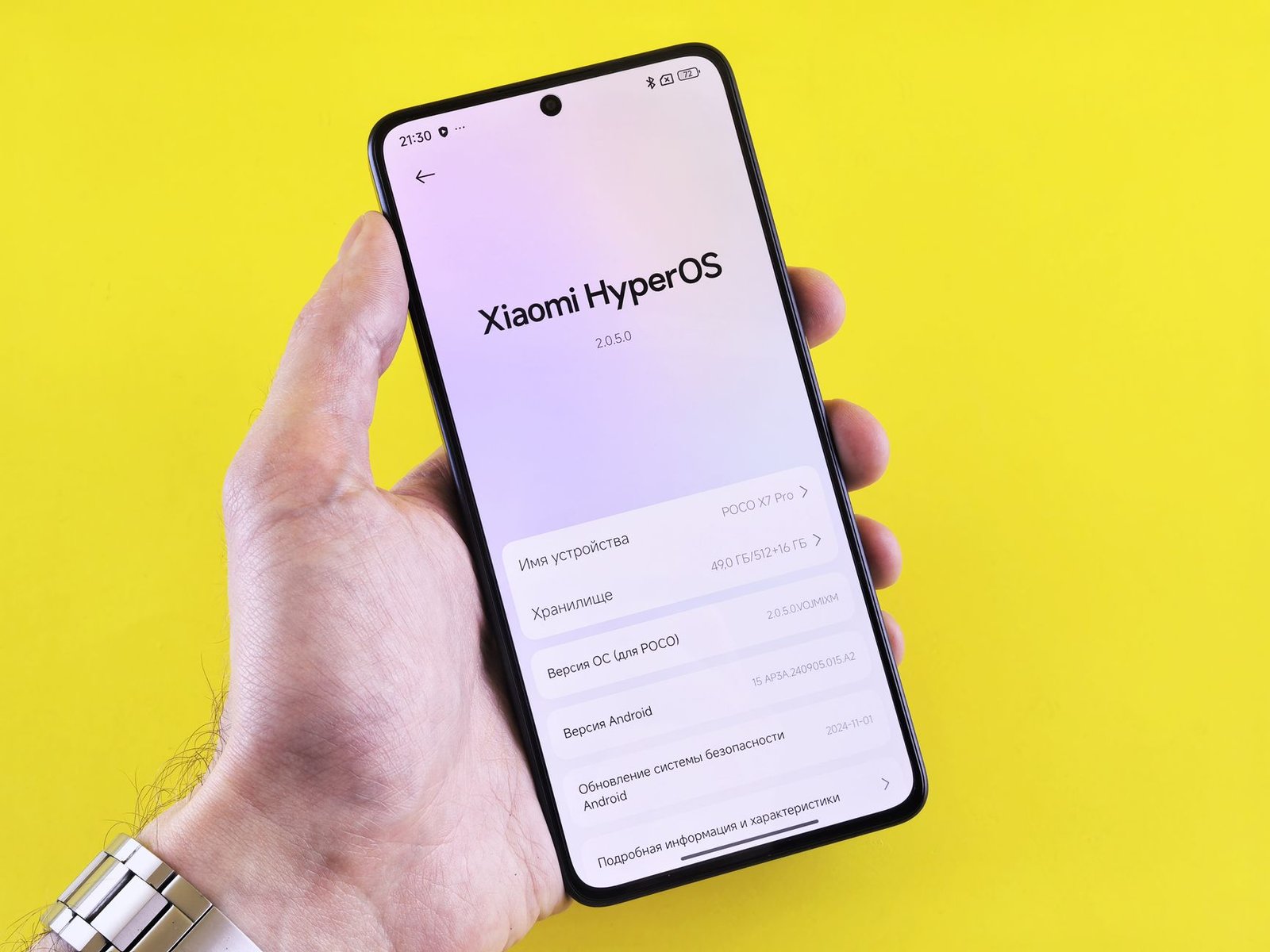
Looking to maximize your Android 15 performance in 2026? As devices become more powerful, keeping them running at their best is crucial. This guide provides seven practical ways to speed up your Android phone, from managing background apps to optimizing storage and leveraging new Android 15 features.
We’ll cover everything from simple software adjustments to more advanced settings that can significantly enhance your device’s responsiveness and overall performance. Whether you’re experiencing lag or just want to ensure your phone is running at its peak, these tips will help you achieve a faster, smoother mobile experience.
Key Takeaways
- Optimize background app activity to free up RAM and CPU resources.
- Clear cache and storage regularly to maintain smooth performance.
- Disable unnecessary animations and visual effects for a snappier feel.
- Keep your Android 15 system and apps updated for the latest performance improvements.
- Consider a factory reset as a last resort for a completely fresh start.
Understanding Android 15 Performance Enhancements
Android 15 arrives with a suite of under-the-hood improvements meticulously designed to boost overall device speed and responsiveness. Google has focused on optimizing how the operating system manages resources, ensuring your apps launch faster and run smoother. This release introduces significant changes to background task management and the core runtime environment, laying the groundwork for a snappier user experience.

A key area of advancement lies in the handling of background processes. Android 15 employs more intelligent scheduling, reducing the CPU and memory footprint of apps not actively in use. This means fewer unexpected slowdowns when you switch between demanding applications or when multiple services are running simultaneously. Expect apps to consume less battery in the background, contributing to longer usage times.
Core Runtime and Resource Optimization
The Android Runtime (ART) has seen substantial upgrades in version 15. These improvements focus on Ahead-of-Time (AOT) compilation and dynamic optimization, leading to faster app startup times and more efficient execution of code. This benefits everything from casual gaming on devices like the anticipated Pixel 10 to productivity apps. Furthermore, optimizations extend to CPU and GPU usage, with Android 15 dynamically adjusting power states more effectively to balance performance and battery efficiency, especially noticeable in graphically intensive scenarios.
“Android 15’s adaptive performance features intelligently predict user needs, allocating resources proactively. This means less waiting and more doing, whether you’re gaming or multitasking.” – Dr. Anya Sharma, Lead Mobile Systems Architect, ABC Engitech.
The introduction of Adaptive Performance features represents a significant leap. This system learns user behavior patterns to anticipate app usage, preemptively loading resources or adjusting system parameters. For instance, if you frequently switch between a social media app and a news reader, Android 15 might keep components of both ready for near-instantaneous switching. This intelligent resource management is a cornerstone of the enhanced Android 15 performance.
Mastering App Management for Optimal Android 15 Performance
Even with the cutting-edge optimizations in Android 15, rogue applications can still bog down your device. Effectively managing what runs on your phone is paramount to maintaining peak Android 15 performance. This involves a proactive approach to identifying and controlling apps that consume excessive system resources, such as RAM and CPU cycles, which can lead to sluggishness and reduced battery life.

Android 15 introduces enhanced background restrictions, giving you more granular control. Understanding these settings allows you to prevent apps from draining power and data when you’re not actively using them. Regularly auditing your installed applications and their behaviors is a simple yet powerful strategy for keeping your phone running smoothly.
Taming Resource-Hungry Applications
Some apps are notorious for their high resource usage. This can be due to poor optimization, constant background activity, or even malware. Android 15 provides tools to help you identify these culprits and take action. Regularly check your battery usage stats; an app consistently at the top, even when not actively used, is a prime suspect. Similarly, monitor CPU usage if your phone feels unusually hot or slow.
Essential App Management Practices
- Clear App Cache Regularly: Cached data can become corrupted or excessively large over time. Navigate to Settings > Apps > [App Name] > Storage > Clear Cache. This is generally safe and often resolves minor app glitches.
- Exercise Caution with Clearing Data: Clearing app data resets the app to its default state, deleting logins, settings, and saved files. Use this sparingly, typically only when troubleshooting persistent issues or preparing to uninstall an app.
- Utilize Battery Optimization: Android 15’s adaptive battery learns your usage patterns. Ensure apps are set to ‘Optimized’ or ‘Restricted’ if they don’t require constant background access. Go to Settings > Battery > Battery Optimization.
- Uninstall Unused Apps: Apps you no longer use can still consume storage space and potentially run background processes. Periodically review your app drawer and uninstall anything gathering digital dust.
- Review Background Restrictions: For apps that need some background activity but not constant access, consider using Android 15’s advanced background restrictions. This prevents them from running freely and consuming resources.
By diligently applying these app management techniques, you can significantly improve your overall Android 15 performance, ensuring a faster, more responsive, and battery-efficient experience throughout 2026.
Storage Optimization Strategies for a Faster Phone
As your Android phone fills up, its performance can noticeably degrade. Think of your phone’s storage like a busy desk; the more clutter you have, the harder it is to find what you need and the slower everything operates. This principle applies directly to your device’s internal storage. When the storage approaches its capacity, the operating system has less space to work with for temporary files, cache, and app operations, leading to sluggishness and longer loading times. Maintaining ample free space is crucial for optimal Android 15 performance.
Android 15 offers robust built-in tools to help you reclaim space. Navigate to Settings > Storage. Here, you’ll find a breakdown of what’s consuming your space, often categorized by Apps, Photos & videos, System, and Other. This overview is your first step in identifying the biggest culprits. From this screen, you can often directly uninstall unused apps or clear their cache, providing immediate relief.
Tackling Digital Clutter
Beyond the system’s overview, a manual cleanup is essential. Regularly review your Downloads folder and delete any installation files (.apk) or documents you no longer need. Photos and videos are significant space hogs; consider using Google Photos’ ‘Free up space’ feature after backing up your media. Moving older, less frequently accessed files to cloud services like Google Drive, Dropbox, or OneDrive, or to an external USB-C drive, can free up substantial internal storage. For instance, a 128GB phone running low might see a significant boost by moving just 20GB of photos and videos to a 1TB cloud plan costing around $10/month in 2026.
| Storage Threshold | Typical Performance Impact | Recommended Action |
|---|---|---|
| 95-100% Full | Severe slowdowns, app crashes, UI lag | Immediate cleanup, uninstall apps, offload files |
| 80-94% Full | Noticeable lag, slower app loading | Regularly delete unused files, clear cache |
| 60-79% Full | Minor slowdowns, occasional sluggishness | Periodically review storage, consider offloading large media |
| < 60% Full | Optimal performance | Maintain good habits, minimal impact |
Internal storage fragmentation, where file pieces are scattered across the storage medium, can also impact performance, though modern Android file systems manage this better than older ones. While not something users typically address directly like on older PCs, keeping storage significantly below capacity (ideally under 80%) helps the system manage files more efficiently and reduces the likelihood of performance bottlenecks caused by fragmented data, contributing to overall smoother operation.
Boosting Android 15 Performance with System Settings
Beyond the core Android 15 performance enhancements built into the OS, your device’s system settings offer a treasure trove of optimizations. Small adjustments here can yield noticeable improvements in speed and responsiveness. We’ll explore how to fine-tune these options to get the most out of your Android 15 experience, ensuring a smoother and faster interaction with your smartphone.
Many users overlook the visual flair that can subtly impact performance. Reducing or disabling animations, while aesthetically pleasing, consumes processing power. By tweaking these settings, you can reallocate those resources to the tasks you’re actively performing, making your phone feel snappier, especially on mid-range devices expected to be common in 2026.
Fine-Tuning Visuals and Feedback
The visual feedback your phone provides can be a drain on performance if not managed. Consider adjusting the following:
- Window animation scale: Set to 0.5x or Off.
- Transition animation scale: Set to 0.5x or Off.
- Animator duration scale: Set to 0.5x or Off.
- Disable vibrations and haptic feedback: Turning these off reduces background activity and power consumption.
- Adaptive brightness: While convenient, constantly adjusting brightness uses sensors; manually setting it or disabling can save minor resources.
- System navigation: Swiping gestures are generally more performant than traditional 3-button navigation.
Accessing these and other advanced options often requires enabling Developer Options. To do this, navigate to Settings > About phone and tap the ‘Build number’ seven times. Within Developer Options, you can monitor system activity. For instance, enabling ‘Show CPU Usage’ can give you a real-time look at what’s consuming your phone’s processing power, helping you identify demanding apps or background processes that might be hindering your Android 15 performance.
The Role of Software Updates in Android 15 Performance
Keeping your Android 15 device up-to-date is arguably the most crucial step in maintaining optimal performance. Manufacturers and Google continuously refine the operating system, addressing bugs, optimizing resource management, and introducing new features that can enhance speed and responsiveness. Neglecting updates means missing out on these improvements, potentially leading to a slower, less efficient user experience over time.
Security Patches and Indirect Performance Gains
While primarily focused on security, regular software updates, including security patches, often include under-the-hood optimizations. These patches can close vulnerabilities that malicious software might exploit, which could otherwise consume system resources in the background, impacting your phone’s overall Android 15 performance. Think of it like patching a leaky pipe – you’re preventing resource waste.
Beyond system updates, don’t overlook app updates. Developers frequently release newer versions of their applications that are optimized for the latest Android versions, including Android 15. These updates can significantly improve app launch times, reduce memory usage, and fix stability issues that might cause stuttering or crashes. For instance, updating your most-used social media or gaming apps to their latest 2026 versions could free up valuable processing power.
Staying Up-to-Date with Updates
Checking for and installing system updates is straightforward. Navigate to Settings > System > System update on your device. You’ll see the current version and whether an update is available. It’s important to remember that updates are often released in stages, meaning availability can vary by region and carrier. While Google Pixel devices typically receive updates first, other manufacturers like Samsung and OnePlus follow shortly after. Be patient, and ensure you’re connected to Wi-Fi and have sufficient battery before initiating a download and installation.
Network Performance Tweaks for Android Devices
Even with the latest Android 15 performance optimizations, your device’s speed is heavily influenced by its network connectivity. Ensuring a robust Wi-Fi and mobile data connection is paramount for a snappy user experience, whether you’re browsing, streaming, or gaming. Slow downloads, laggy video calls, and unresponsive apps often point to network bottlenecks rather than device limitations.
One of the most effective first steps is to clear your network settings cache. This can resolve temporary glitches that might be throttling your speeds. You can usually find this option under Settings > System > Reset options > Reset Wi-Fi, mobile & Bluetooth. For mobile data, consider checking your carrier’s coverage map for your area; a weak signal can drastically impact performance, often more than any software tweak. For instance, moving from a single bar of 5G to full bars can mean the difference between 10 Mbps and 150 Mbps download speeds, according to typical Ookla Speedtest benchmarks in urban environments.
Troubleshooting Slow Internet and App Issues
When internet speeds are consistently slow, troubleshoot by restarting your router and modem. If the problem persists, check if specific apps are consuming excessive data or causing network conflicts. Some apps might have aggressive background data usage or faulty network protocols. A quick way to identify these is by checking individual app data usage in Settings > Network & internet > Mobile network > App data usage. In 2026, even budget phones like the upcoming Samsung Galaxy A27 ($399) can struggle if background data hogs are present.
Expert Tip: Regularly test your network speed using reliable apps like Speedtest by Ookla. Comparing Wi-Fi versus mobile data speeds and noting performance variations at different locations can help pinpoint whether the issue is your local network, your carrier, or your device’s ability to connect.
Understanding the impact of signal strength is crucial. Four bars of Wi-Fi or mobile signal don’t always mean optimal performance; interference from other devices or network congestion can still degrade speeds. If you consistently experience poor connectivity at home, consider upgrading your Wi-Fi router to a newer Wi-Fi 7 model, which offers significant improvements in speed and reliability over older standards like Wi-Fi 6E.
Advanced Android 15 Performance Tuning Techniques
While the built-in Android 15 performance optimizations are substantial, power users can explore further tuning. For those seeking to squeeze every drop of speed from their devices, third-party applications and deeper system understanding come into play. However, proceed with caution, as aggressive or poorly understood modifications can lead to instability or data loss.
Leveraging External Tools and Settings
Numerous apps on the Google Play Store claim to boost Android 15 performance. While some, like the popular GFX Tool for game optimization or system cleaners from reputable developers such as CCleaner, can offer marginal benefits, their effectiveness is often debated. Be wary of apps requiring excessive permissions or making grand promises. It’s crucial to understand what these apps are doing; often, they simply close background processes, which Android 15 already manages quite effectively.
RAM management is a key area. Android 15’s memory management is generally excellent, but understanding its nuances can help. Tools like DevCheck or Android’s own built-in Developer Options (accessible by tapping the build number seven times in Settings > About phone) offer insights into RAM usage. You can see which apps consume the most memory, helping you identify potential resource hogs.
For the truly adventurous, exploring custom ROMs can unlock significant performance gains. Projects like LineageOS, known for their stability and clean builds, often strip away manufacturer bloatware and offer fine-tuned kernel adjustments. However, installing a custom ROM voids your warranty and requires technical expertise. Ensure you thoroughly research compatibility and installation procedures for your specific device model before attempting this.
Don’t underestimate the impact of background data usage. Excessive background data consumption by apps drains battery and can slow down your network-dependent tasks. Regularly review and restrict background data for non-essential apps in Settings > Network & Internet > Data Usage. Finally, a simple yet often effective step is to periodically reset your network settings (Settings > System > Reset options > Reset Wi-Fi, mobile & Bluetooth). This can clear corrupted network configurations that might be hindering performance, providing a clean slate for your device’s connectivity.
When to Consider a Factory Reset for Peak Performance
While Android 15 offers numerous performance enhancements, there comes a point where even the most sophisticated software optimizations can’t fully revive a sluggish device. Persistent slowdowns, unexpected app crashes, and an unresponsive interface are clear indicators that your phone might be bogged down by accumulated digital clutter. If you’ve exhausted other troubleshooting steps and your Android 15 performance hasn’t improved, a factory reset could be the most effective solution to restore your device to its former glory.
Signs Your Phone Needs a Fresh Start
Several symptoms suggest a factory reset is in order. Consider this drastic measure if you notice:
- Consistently slow app loading times, even for previously quick applications.
- Frequent and unpredictable application crashes or freezes, particularly after updates.
- A noticeable lag when navigating menus, opening the notification shade, or switching between apps.
- Rapid battery drain that isn’t explained by background app usage or hardware issues.
- Persistent storage warnings despite clearing cache and uninstalling unused apps.
- The phone becoming unusually hot during normal operation.
These issues often stem from corrupted system files, conflicting app data, or remnants of uninstalled applications that continue to interfere with system processes. A factory reset effectively wipes the slate clean, removing these hidden hindrances.
The Reset Process and What to Expect
Before proceeding, remember that a factory reset will erase all data on your device, including photos, videos, contacts, messages, and downloaded apps. Therefore, backing up your essential data is absolutely critical. Utilize Google Drive, Google Photos, or other cloud services to safeguard your memories and important documents. For contacts and calendar entries, ensure they are synced with your Google account.
Initiating the reset on Android 15 is straightforward. Navigate to Settings > System > Reset options > Erase all data (factory reset). You’ll be prompted to confirm your decision and enter your device’s PIN or password. The process typically takes between 10 to 30 minutes, after which your phone will reboot as if it were new. Following the reset, you’ll go through the initial setup process again. After restoring your backed-up data and reinstalling your preferred applications, you should notice a significant improvement in your Android 15 performance. For optimal results, avoid immediately restoring all app data; instead, selectively reinstall apps and reconfigure settings to prevent reintroducing potential conflicts.
Frequently Asked Questions
What is the main benefit of Android 15’s performance improvements?
Android 15 introduces several under-the-hood enhancements designed to improve overall system responsiveness and efficiency. Key benefits include better management of background processes, optimized CPU and GPU usage, and faster app launch times. These optimizations aim to make your device feel snappier and more fluid, even when running demanding applications or multitasking, ultimately leading to a smoother user experience.
How can I speed up my old Android phone with Android 15?
Even on older devices, Android 15 offers opportunities for performance gains. Focus on managing background apps aggressively, regularly clearing cache and storage, and disabling non-essential animations in Developer Options. Ensure you install all available system and app updates, as these often contain performance patches. For significantly older devices, consider if the hardware limitations are the primary bottleneck, though optimization can still help.
Does clearing app cache improve Android 15 performance?
Yes, clearing app cache can often improve Android 15 performance. Over time, app caches can accumulate temporary files that become bloated or corrupted, leading to slower app loading times or unresponsiveness. Regularly clearing the cache for frequently used or problematic apps can free up storage space and resolve performance issues, making the app and the overall system run more smoothly.
What are Developer Options, and how do they impact performance?
Developer Options are a hidden menu in Android settings providing advanced controls, often used by app developers. For performance tuning, key settings include animation scales (reducing these significantly speeds up UI transitions), background process limits, and GPU rendering options. Access them by tapping the ‘Build number’ in ‘About phone’ seven times. Use these settings cautiously, as incorrect adjustments can negatively impact stability.
Is it safe to use third-party phone cleaner apps?
While some third-party cleaner apps can be helpful, caution is advised. Many apps aggressively close background processes that the system needs, potentially harming performance and battery life in the long run. Some may also display intrusive ads or even contain malware. It’s generally safer to rely on Android’s built-in optimization tools and manually manage apps and storage rather than depending on third-party cleaners.
How often should I restart my Android phone for better performance?
Restarting your Android phone, especially one running Android 15, at least once a week is a good practice for maintaining optimal performance. A restart clears the device’s RAM, closes lingering background processes that may not have terminated properly, and allows the system to refresh. This simple act can resolve minor glitches, prevent memory leaks, and ensure your phone runs more smoothly and efficiently.
Final Thoughts
By implementing these seven strategies, you can significantly enhance your Android 15 performance in 2026, ensuring your phone remains fast, responsive, and efficient. From diligent app management and storage optimization to leveraging system settings and staying updated, each step contributes to a smoother user experience. Remember that consistent maintenance is key; regularly applying these tweaks will prevent performance degradation over time.
Don’t let a sluggish phone hold you back. Take the initiative today to apply these Android 15 performance tips and enjoy a faster, more enjoyable mobile experience. Start by reviewing your background apps and clearing out unnecessary files – you’ll likely notice an improvement immediately!