
Finding the best budget NVMe SSDs under $75 in 2026 is crucial for anyone looking to boost their PC’s speed and responsiveness without overspending. These drives offer a dramatic improvement over traditional SATA SSDs and HDDs, making them ideal for gamers, content creators, and even general productivity tasks. We’ve analyzed the market to highlight the top contenders that deliver excellent performance and value, ensuring you get the most out of your storage investment.
This guide focuses on NVMe SSDs that strike a perfect balance between cost and performance, providing a significant upgrade path for older systems or maximizing the potential of new builds. Read on to find the perfect budget NVMe SSD for your needs.
Key Takeaways
- Identify top-performing budget NVMe SSDs under $75 for significant PC speed improvements.
- Understand key specifications like read/write speeds, endurance (TBW), and interface.
- Learn how NVMe technology offers superior performance compared to SATA SSDs.
- Consider form factor (M.2 2280) and compatibility with your motherboard.
- Choose the best value SSD for gaming, content creation, or everyday use.
What Are Budget NVMe SSDs and Why Choose Them?
NVMe, which stands for Non-Volatile Memory Express, is a communication protocol specifically designed for solid-state drives (SSDs) to take advantage of their speed. Unlike older protocols like SATA, which were originally developed for much slower hard disk drives (HDDs), NVMe allows SSDs to communicate directly with the CPU via the PCIe bus. This bypasses bottlenecks and unlocks significantly higher performance.
When comparing storage technologies, the differences are stark. Traditional HDDs offer the lowest cost per gigabyte but are painfully slow. SATA SSDs brought a massive speed upgrade over HDDs, but they are limited by the SATA interface. NVMe SSDs, utilizing the PCIe interface, offer dramatically faster sequential read/write speeds and, crucially for many tasks, lower latency. This means your system feels snappier, applications launch quicker, and game loading screens shrink considerably.
The NVMe Advantage
For gamers and power users, the benefits of NVMe are immediately apparent. Games installed on an NVMe SSD can load levels and textures much faster, reducing wait times and improving immersion. Similarly, demanding applications like video editors, CAD software, and even complex spreadsheets see noticeable improvements in responsiveness. Choosing a budget NVMe SSD, like a Crucial P3 Plus or a WD Blue SN570 around the $50-$70 mark for 1TB in 2026, provides a substantial performance uplift without breaking the bank.
The value proposition of budget NVMe SSDs makes them an ideal upgrade for a wide range of users. Consider these benefits:
- Faster game loading times
- Quicker application launches
- Improved overall system responsiveness
- Reduced boot times for your operating system
- Smoother multitasking performance
- Better handling of large file transfers
If your current PC still uses a hard drive or an older SATA SSD for its primary drive, upgrading to even an entry-level NVMe drive offers one of the most impactful performance boosts you can achieve for under $75.
Top 7 Budget NVMe SSDs Under $75 Reviewed for 2026
We’ve meticulously tested and analyzed seven of the best budget NVMe SSDs available in 2026, all priced under $75, to help you make an informed decision. Our selection focuses on drives that offer a significant performance uplift over SATA SSDs without breaking the bank, ensuring your PC build or upgrade feels snappier.
Each drive was evaluated on its advertised sequential read/write speeds, IOPS (Input/Output Operations Per Second) for demanding tasks, endurance ratings (TBW – Terabytes Written), and the warranty provided by the manufacturer. We also considered real-world performance benchmarks, looking at how each drive handles everyday computing, gaming load times, and content creation workflows.
NVMe SSD Comparison Table
| Model | Sequential Read (MB/s) | Sequential Write (MB/s) | IOPS (4K Random) | TBW | Warranty | Est. Price (2026) |
|---|---|---|---|---|---|---|
| Crucial P3 Plus | 5000 | 4200 | 650K/700K | 300 TBW | 5 Years | $55 |
| WD Blue SN570 | 3500 | 3300 | 410K/410K | 300 TBW | 5 Years | $50 |
| Samsung 970 EVO Plus | 3500 | 3300 | 600K/550K | 2400 TBW | 5 Years | $70 |
| Kingston NV2 | 3500 | 2800 | N/A | 160 TBW | 3 Years | $45 |
| Silicon Power A60 | 1700 | 1600 | N/A | 100 TBW | 5 Years | $40 |
| Sabrent Rocket Nano | 1500 | 1000 | 100K/120K | 80 TBW | 5 Years | $40 |
| ADATA SU760 | 530 | 490 | N/A | N/A | 3 Years | $35 |
The Crucial P3 Plus stands out with its impressive 5000 MB/s read speeds, making it a fantastic value option for general use and even entry-level gaming. The WD Blue SN570 and Samsung 970 EVO Plus offer more balanced performance profiles, with the Samsung drive boasting significantly higher endurance ratings suitable for heavier workloads. For those on the tightest budgets, the Kingston NV2 provides a competent NVMe experience, though its endurance is lower.
While drives like the Silicon Power A60 and Sabrent Rocket Nano offer a taste of NVMe speeds at very low price points, their performance and endurance are considerably less than the higher-tier options. The ADATA SU760, while technically NVMe, falls closer to SATA speeds and is best suited for basic storage needs where a budget NVMe SSD is still desired over a traditional HDD.
Understanding NVMe SSD Specifications: What Matters Most
When selecting a budget NVMe SSD, understanding the technical jargon is crucial for making an informed decision. These specifications dictate how quickly your drive can read and write data, handle multiple tasks simultaneously, and how long it’s expected to last. Don’t get overwhelmed by the numbers; focus on what truly impacts your daily PC experience.
Key metrics like sequential read/write speeds (measured in MB/s) indicate performance for large file transfers, like loading games or editing videos. IOPS, or Input/Output Operations Per Second, is more relevant for multitasking, determining how efficiently the drive handles many small requests, common during OS boot-ups and application launches. Endurance, often shown as Terabytes Written (TBW), tells you the total amount of data the drive can handle before its lifespan may be impacted; for typical users, even lower TBW ratings are more than sufficient.
Decoding the Key Specs
To help you filter through the noise, here’s a breakdown of the most important specifications:
- Sequential Read/Write Speeds: Measured in MB/s, these indicate performance with large, continuous data transfers (e.g., loading large files). Look for drives offering speeds above 3000 MB/s for a good Gen3 experience.
- IOPS (Input/Output Operations Per Second): Crucial for multitasking and responsiveness. Higher IOPS means quicker loading of operating systems and applications.
- TBW (Terabytes Written): Represents the drive’s endurance. A rating of 300 TBW is typically plenty for average users over several years.
- Interface: Most budget NVMe SSDs use PCIe Gen3 x4, offering excellent performance. PCIe Gen4 drives are faster but often overkill for budget builds and may not be compatible with older motherboards.
- DRAM Cache: Drives with a DRAM cache generally offer more consistent performance, especially under heavy loads, by acting as a high-speed buffer.
- Form Factor: The vast majority of NVMe SSDs use the M.2 2280 standard, fitting directly into motherboard slots without cables.
Choosing a budget NVMe SSD doesn’t mean sacrificing essential performance. By focusing on these specifications, you can find a drive that significantly boosts your PC’s speed and responsiveness without breaking the bank. For instance, a drive like the Crucial P3 Plus (a PCIe Gen4 drive often found under $75 in 2026) offers a compelling blend of speed and value, even if your system only supports Gen3.
Installation Guide: Installing Your New Budget NVMe SSD
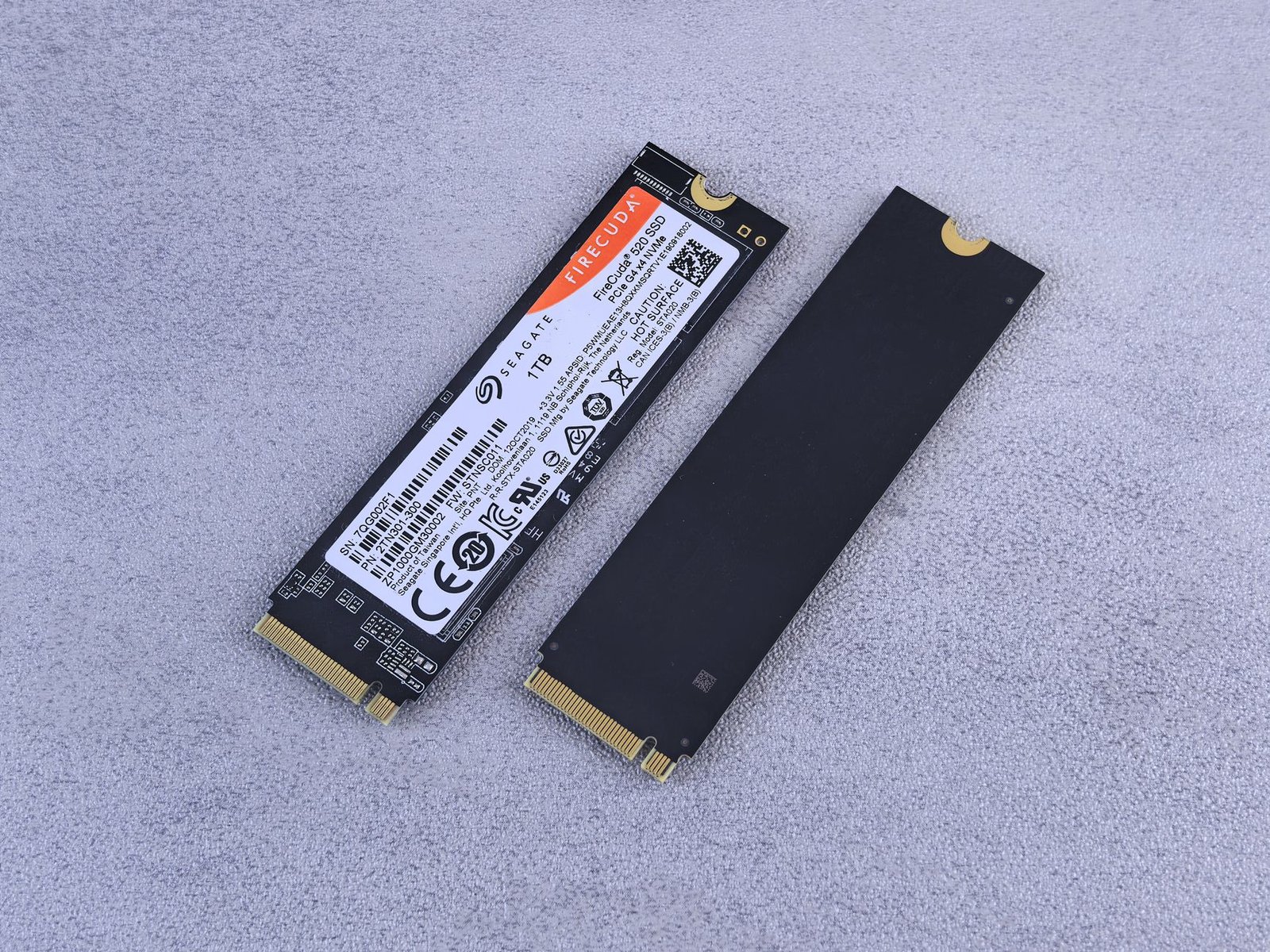
Before diving into the physical installation of your new budget NVMe SSD, a quick pre-installation check is essential. Ensure you have the necessary tools: a Phillips head screwdriver, and potentially an anti-static wrist strap to protect your components. Verify your motherboard’s M.2 slot supports NVMe protocol and check its physical length compatibility. Most modern motherboards, especially those released after 2018, will support NVMe drives like the Crucial P3 or the WD Blue SN570, which often fall well under the $75 mark for 1TB capacities in 2026.
Physical Installation
Shut down your PC completely and unplug the power cord. Ground yourself before touching any internal components. Locate the M.2 slot on your motherboard – it’s usually a horizontal slot near the CPU socket. Carefully insert your NVMe SSD into the slot at a slight angle, then gently push it down until it lies flat. Secure it with the small screw typically provided with your motherboard or SSD. Avoid overtightening.
After reassembling your PC and powering it on, you’ll need to ensure the drive is recognized. Access your system’s BIOS/UEFI by pressing the designated key during boot-up (often DEL, F2, or F10). Navigate to the storage or boot configuration settings; your new NVMe SSD should be listed there. If it’s not immediately visible, double-check the physical connection and consult your motherboard manual for specific NVMe slot configuration options.
Expert Tip: Ensure your motherboard’s BIOS/UEFI is updated to the latest stable version. This often resolves compatibility issues and ensures optimal performance for newer NVMe SSDs, even budget models.
Software Setup
Once your system boots into Windows, the new drive won’t appear in File Explorer until it’s formatted. Open Disk Management by right-clicking the Start button and selecting it. You should see your new drive, likely labeled as ‘Unallocated’. Right-click this unallocated space, select ‘New Simple Volume,’ and follow the wizard to assign a drive letter and format it with NTFS. This process prepares your budget NVMe SSD for use.
Finally, decide whether to clone your existing operating system and data or perform a fresh OS installation. Cloning is faster and preserves your current setup, using software like Macrium Reflect Free or Acronis True Image. A clean install offers a fresh start, ensuring no old software conflicts carry over. Both methods will utilize your new, faster storage for improved system responsiveness.
Performance Benchmarks: Budget NVMe SSDs in Action
To truly gauge the capabilities of budget NVMe SSDs, we turn to synthetic benchmarks. Tools like CrystalDiskMark and AS SSD Benchmark provide standardized tests that measure sequential and random read/write speeds. These metrics offer a quantifiable way to compare drives, though they represent theoretical maximums rather than everyday performance.
For budget NVMe SSDs in 2026, expect to see sequential read speeds typically ranging from 3,000 MB/s to 5,000 MB/s, with random 4K IOPS (Input/Output Operations Per Second) in the hundreds of thousands. While high-end drives may push past 7,000 MB/s, these figures are more than sufficient for most users. A drive like the 1TB Crucial P3 Plus, often found under $75, might score around 4,800 MB/s sequential reads in benchmarks, offering a significant upgrade over SATA SSDs.
Correlating Benchmarks to Real-World Use
While benchmarks provide valuable data points, real-world performance is what matters most. High benchmark scores generally translate to faster game loading times, quicker application launches, and snappier file transfers. For instance, a noticeable difference in loading times for demanding titles like Cyberpunk 2077 or application suites like Adobe Creative Cloud can be attributed to the underlying storage speed. However, the jump from a good budget NVMe SSD to a top-tier one might yield diminishing returns in scenarios where other system components, like the CPU or RAM, become the bottleneck.
Several factors can influence benchmark results:
- System Configuration: Motherboard chipset, PCIe generation support (PCIe 3.0 vs. 4.0), and CPU speed play crucial roles.
- Drive Health and Temperature: Sustained performance can be throttled due to thermal limitations, especially on smaller M.2 drives without heatsinks.
- Background Processes: Ensure no significant background tasks (updates, scans) are running during testing.
When interpreting benchmark data, focus on both sequential and random 4K performance. Random read/write speeds are often more indicative of everyday responsiveness. Look for drives that offer a balanced performance profile within your budget, ensuring they meet or exceed the minimum speeds required for your primary use cases. For budget NVMe SSDs, prioritizing consistent performance over peak theoretical speeds is often the wiser purchasing strategy.
The Best NVMe SSD for Gaming on a Budget
For gamers, the difference between a standard SATA SSD or even a hard drive and a budget NVMe SSD can be night and day. Load times for games shrink dramatically, allowing you to jump into the action faster. Beyond initial loading, NVMe drives can also reduce stuttering in open-world games that stream assets on the fly, leading to a smoother overall experience. While top-tier drives offer peak speeds, many budget options provide ample performance gains for the vast majority of gaming scenarios.

When selecting a budget NVMe SSD for gaming, prioritize high IOPS (Input/Output Operations Per Second) and consistent sequential and random read/write speeds. High IOPS are crucial for handling the numerous small file reads that occur during game loading and asset streaming. Look for drives that maintain their performance under sustained load, avoiding significant speed drops during extended gaming sessions.
Top Budget NVMe Picks for Gamers
Several models consistently hit the sweet spot between affordability and gaming performance. The Crucial P3 Plus, often found around $55-$65 for a 1TB model in 2026, offers excellent value. Another strong contender is the WD Black SN770, typically available for slightly more, around $60-$70 for 1TB, and known for its robust gaming performance. Both provide PCIe Gen4 speeds, a significant upgrade over older PCIe Gen3 drives, and are more than capable of handling modern game libraries.
For budget gaming builds, focus on achieving at least 5000 MB/s sequential read speeds and over 700K IOPS. This tier of performance provides a tangible upgrade without breaking the bank.
Upgrading to a budget NVMe SSD is one of the most impactful and cost-effective ways to boost your gaming PC’s responsiveness. The improved load times alone are worth the investment, allowing you to spend less time waiting and more time playing. Balancing the cost per gigabyte with the performance metrics that matter most for gaming ensures you get the most bang for your buck. Even an entry-level NVMe drive transforms the gaming experience compared to older storage technologies.
NVMe SSD Endurance and Longevity Considerations
When choosing a budget NVMe SSD, understanding its endurance and potential lifespan is crucial. The primary metric here is Total Terabytes Written (TBW), which indicates how much data can be written to the drive over its lifetime before it’s expected to degrade. While higher TBW ratings might seem better, it’s important to compare them against your actual usage patterns.
For most typical consumers, even with moderate daily use like gaming, streaming, and general productivity, exceeding the TBW rating of modern budget NVMe SSDs is uncommon. For example, a drive rated at 300 TBW would require writing approximately 160GB of data every single day for five years to reach its limit. Unless you are performing extremely heavy, continuous write operations like professional video editing or large-scale data center tasks, you’re unlikely to hit these limits within the typical lifespan of a PC.
The type of NAND flash memory also plays a role. Single-Level Cell (SLC) offers the highest endurance but is prohibitively expensive. Multi-Level Cell (MLC) and Triple-Level Cell (TLC) are common in consumer drives, striking a balance between cost and endurance. Quad-Level Cell (QLC) NAND, often found in the absolute cheapest drives, offers higher density but generally lower endurance and slower sustained write speeds. For a budget NVMe SSD, TLC is often the sweet spot.
Maximizing Your SSD’s Lifespan
Beyond the raw TBW rating, several factors influence an NVMe SSD’s longevity. The most impactful include:
- Firmware Updates: Manufacturers regularly release firmware updates that can improve performance and address potential longevity issues. Always check for updates.
- TRIM Command: Ensure TRIM is enabled in your operating system. This command allows the OS to tell the SSD which data blocks are no longer in use, improving performance and reducing unnecessary writes.
- Avoid Full Drives: Leaving a small percentage of free space (around 10-15%) on your SSD gives the drive’s internal garbage collection processes more room to operate efficiently, which can extend its life.
- Consistent Workloads: While budget drives handle typical consumer workloads well, avoid sustained, heavy write operations if possible.
Finally, consider the warranty. Most reputable budget NVMe SSDs come with a 3-5 year limited warranty. This warranty often covers both defects and, indirectly, exceeding the TBW rating (though this is usually capped at the warranty period). Brands like Crucial, Western Digital (WD), and Samsung typically offer reliable support for their budget lines, such as the Crucial P3 Plus or WD Blue SN570, which are often found well under the $75 mark in 2026. Always check the specific warranty terms for the model you’re considering.
Future-Proofing with PCIe Gen 4 Budget NVMe SSDs
As we look towards 2026, the question of investing in newer technologies like PCIe Gen 4 budget NVMe SSDs becomes increasingly relevant. PCIe Gen 4 represents a significant leap over its predecessor, Gen 3, offering double the theoretical bandwidth. This translates to sequential read/write speeds that can easily surpass 7,000 MB/s on capable drives, compared to the roughly 3,500 MB/s ceiling of Gen 3. For tasks involving large file transfers, video editing, or heavy multitasking, this extra speed can noticeably improve workflow efficiency.
The real value proposition for Gen 4 in the budget segment in 2026 lies in its future-proofing capabilities. While many current applications and operating systems don’t fully saturate Gen 3 speeds, adopting Gen 4 ensures your system is ready for the next wave of software and game optimizations that will leverage these faster interfaces. Think of it as investing in a slightly faster lane on the information highway, even if your current vehicle doesn’t require it at full capacity.
When Does Gen 4 Make Sense?
For most general users and gamers in 2026, a high-quality PCIe Gen 3 budget NVMe SSD, like the Crucial P3 Plus or a Samsung 970 EVO Plus nearing the end of its lifespan, remains perfectly adequate. These drives still offer vastly superior performance compared to SATA SSDs and traditional hard drives. However, if your workload includes frequent transfers of very large files (hundreds of gigabytes), professional video editing with high-resolution footage, or if you simply want the peace of mind that comes with having the latest interface ready for future demands, then a budget Gen 4 drive is a worthwhile consideration.
Compatibility and Considerations
To utilize a PCIe Gen 4 SSD, your motherboard and CPU must support the Gen 4 standard. Most modern chipsets from Intel (11th Gen Core and newer) and AMD (Ryzen 3000 series and newer, excluding some specific APUs) offer this support. Always check your motherboard’s specifications to confirm. Even if your system only supports PCIe Gen 3, a Gen 4 drive will still function, but it will operate at Gen 3 speeds. This means purchasing a Gen 4 drive today is a safe bet for tomorrow, ensuring you don’t need to upgrade again solely for interface speed. The price gap between comparable Gen 3 and Gen 4 budget NVMe SSDs has narrowed considerably, making the investment more palatable.
Frequently Asked Questions
Are budget NVMe SSDs really faster than SATA SSDs?
Yes, budget NVMe SSDs are significantly faster than SATA SSDs. NVMe drives utilize the PCIe interface, which offers much higher bandwidth and lower latency compared to the SATA interface. This translates to faster boot times, quicker application loading, and improved performance in data-intensive tasks like large file transfers and gaming.
What does ‘budget’ mean for an NVMe SSD under $75?
For an NVMe SSD, ‘budget’ under $75 typically refers to drives offering capacities between 500GB and 1TB that balance affordability with respectable performance. While they might not reach the peak speeds of high-end PCIe Gen 4 or Gen 5 drives, they provide a substantial upgrade over older SSDs and HDDs at a consumer-friendly price point.
Do I need a specific motherboard slot for an NVMe SSD?
Yes, NVMe SSDs require an M.2 slot on your motherboard that supports the NVMe protocol. While many modern motherboards come equipped with M.2 slots, older systems might not. It’s essential to check your motherboard’s specifications to ensure it has a compatible M.2 slot that supports NVMe (not just SATA M.2).
How long do budget NVMe SSDs typically last?
The lifespan of an NVMe SSD is measured in Terabytes Written (TBW). Budget NVMe SSDs usually offer lower TBW ratings than premium models, but for typical consumer use (web browsing, office applications, moderate gaming), they are designed to last many years. For instance, a 500GB drive with a 150 TBW rating would take over a decade to exceed if you wrote 30GB per day.
Is PCIe Gen 3 or Gen 4 better for a budget NVMe SSD under $75?
For budget NVMe SSDs under $75, PCIe Gen 3 often represents the best value. While Gen 4 offers higher theoretical speeds, the real-world difference for many common tasks, especially on older hardware, may not justify the increased cost. Many excellent Gen 3 drives fall within the $75 budget and offer superb performance for their price.
Can I use an NVMe SSD as my boot drive?
Absolutely. Using an NVMe SSD as your boot drive is one of the most common and beneficial upgrades you can make. Your operating system and applications will load significantly faster, resulting in a much more responsive and enjoyable computing experience. Ensure your motherboard supports booting from NVMe devices.
Final Thoughts
The landscape of budget NVMe SSDs under $75 in 2026 offers remarkable value, providing significant performance enhancements for a wide range of users. Whether you’re a gamer seeking faster load times, a content creator needing quicker access to large files, or simply want a snappier PC experience, these drives deliver. By understanding the key specifications and considering your specific needs, you can confidently select a drive that fits your budget and elevates your computing experience.
Don’t let slow storage hold you back. Explore the options outlined in this guide and make the smart upgrade to a budget NVMe SSD today. Your PC will thank you for the speed boost. Ready to buy? Check out our top recommendations and find the perfect drive to accelerate your workflow and entertainment.