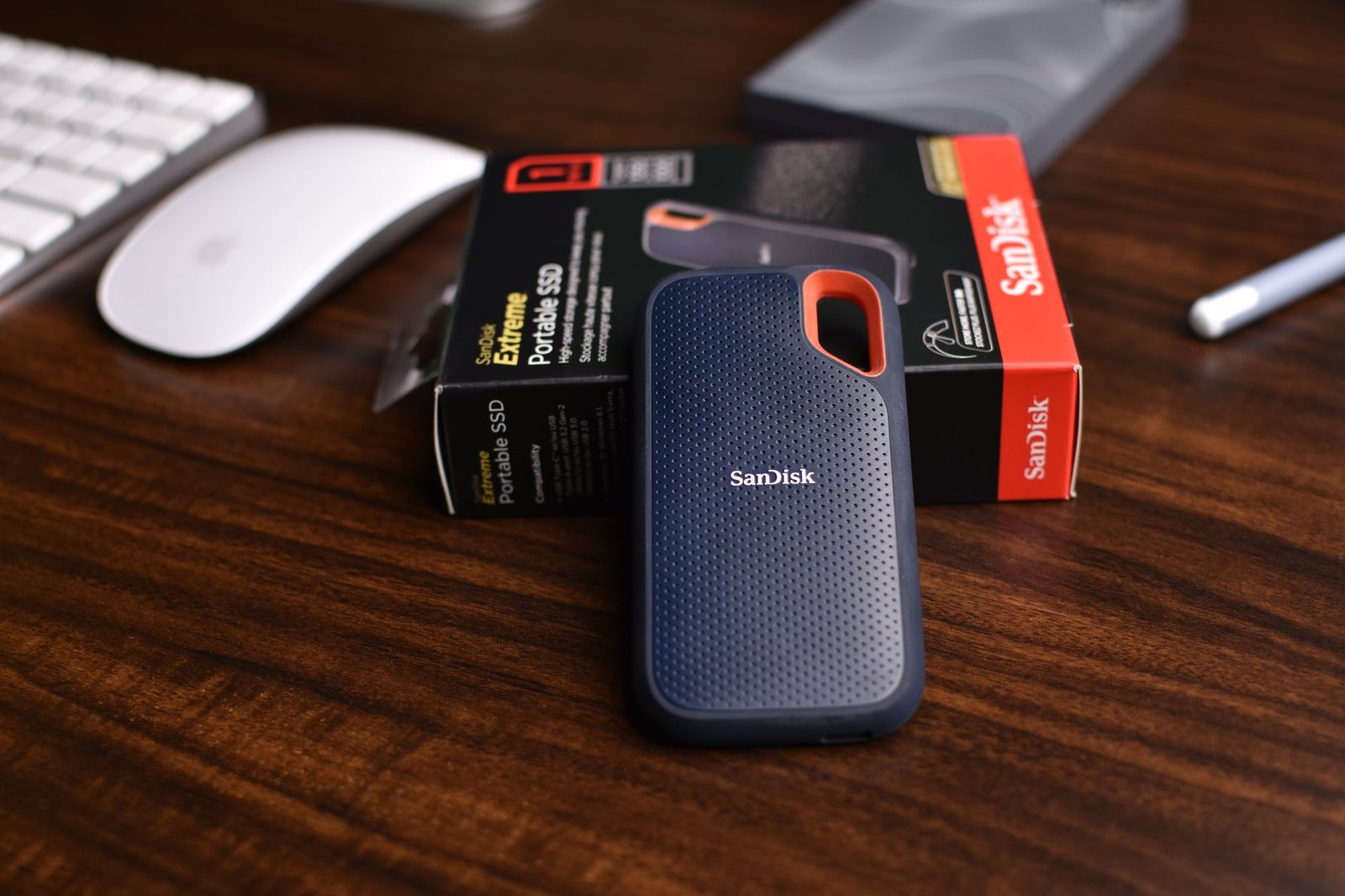
If you’re looking to significantly boost your PC’s performance without spending a fortune, investing in a budget NVMe SSD is one of the smartest upgrades you can make in 2026. These solid-state drives offer dramatically faster load times and system responsiveness compared to traditional HDDs and even SATA SSDs, all while remaining under the $75 price point. This guide is designed to help you navigate the options and find the best budget NVMe SSD that fits your needs and budget.
We’ve scoured the market to identify the top contenders, focusing on a balance of speed, reliability, capacity, and, of course, affordability. Whether you’re a gamer seeking quicker game loads, a creative professional needing faster file transfers, or simply want a snappier daily computing experience, there’s a budget NVMe SSD out there for you.
Key Takeaways
- Top budget NVMe SSDs under $75 offer significant speed boosts for gaming and daily tasks.
- Key factors to consider include read/write speeds, capacity, endurance (TBW), and brand reputation.
- NVMe technology provides a substantial performance leap over SATA SSDs for compatible motherboards.
- Look for drives with DRAM cache for sustained performance, though some budget options omit it.
- Warranty length is a crucial indicator of manufacturer confidence and drive longevity.
What is an NVMe SSD and Why Choose One?
NVMe, or Non-Volatile Memory Express, is a modern storage protocol specifically designed to take full advantage of the high speeds offered by flash-based solid-state drives (SSDs). Unlike older protocols like SATA (Serial ATA) and AHCI (Advanced Host Controller Interface), which were originally developed for slower mechanical hard drives, NVMe communicates directly with the CPU over the PCIe (Peripheral Component Interconnect Express) bus. This direct connection bypasses bottlenecks inherent in older interfaces, unlocking significantly higher performance potential for your storage.
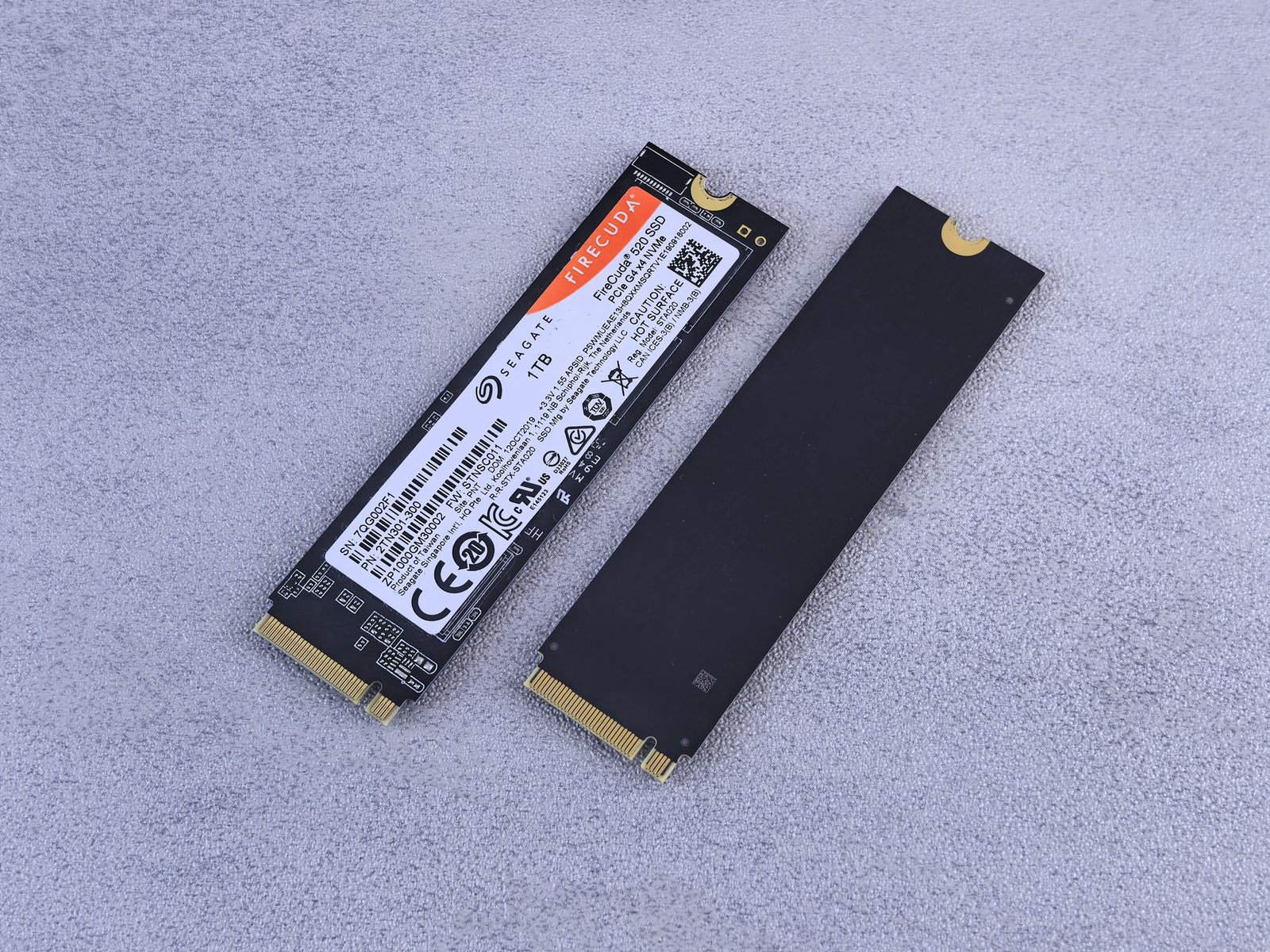
The primary advantage of NVMe SSDs lies in their dramatically increased read and write speeds, coupled with substantially lower latency. This translates into tangible improvements you’ll notice every day. Boot times can be slashed from minutes to mere seconds, applications will launch almost instantaneously, and large file transfers, like moving video projects or game installs, become much quicker. For instance, a PCIe 4.0 NVMe SSD like the Crucial T500 can achieve sequential read speeds of up to 7,400 MB/s, vastly outperforming even the fastest SATA SSDs which typically top out around 550 MB/s.
Key Benefits of NVMe
- Blazing Fast Speeds: Experience sequential read/write speeds often exceeding 7,000 MB/s for PCIe 4.0 drives.
- Reduced Latency: Faster data access and response times for a smoother overall system feel.
- Improved Multitasking: Handle more simultaneous I/O operations efficiently.
- Lower Power Consumption: More power-efficient for laptops compared to older SSD technologies.
- Enhanced Gaming: Faster game loading times and asset streaming.
- Quicker Boot-ups: Get to your desktop in seconds.
However, to harness the power of an NVMe SSD, your system needs to be compatible. This generally requires a motherboard with an M.2 slot that supports NVMe drives, and sufficient PCIe lanes. Most modern motherboards released since 2017 offer this support, often specifying PCIe generation (e.g., PCIe 3.0, 4.0, or 5.0) for the M.2 slots. Always check your motherboard’s specifications to ensure compatibility before purchasing a budget NVMe SSD.
Understanding Key NVMe SSD Specifications for Budget Drives
When hunting for the best budget NVMe SSDs under $75, deciphering the spec sheet is crucial. Don’t let marketing jargon confuse you; understanding these key terms will empower you to make an informed decision. We’ll focus on what truly matters for everyday users seeking enhanced speed without breaking the bank.
Performance Metrics Explained
Read and Write Speeds are often advertised using sequential speeds (e.g., 3500 MB/s read, 3000 MB/s write), which reflect large file transfers. However, Random Speeds, measured in IOPS (Input/Output Operations Per Second), are more indicative of real-world performance for tasks like booting your OS or launching applications. For budget drives, look for sequential speeds well above 1500 MB/s and random read IOPS nearing 200,000.
Capacity is your storage space. Common budget-friendly sizes are 250GB, 500GB, and 1TB. While 250GB might suffice for basic OS installs, 500GB offers a better balance for games and applications. 1TB drives are increasingly accessible under $75, especially during sales, making them the sweet spot for value.
| Capacity | Typical Price Range (2026) | Target Use Case |
|---|---|---|
| 250GB | $30 – $45 | OS & Light Apps |
| 500GB | $40 – $60 | OS, Apps & Some Games |
| 1TB | $60 – $75 | OS, Large Apps & Multiple Games |
Endurance, Cache, and NAND
Endurance, quantified as TBW (Terabytes Written), indicates how much data can be written to the drive before its lifespan is potentially compromised. For most users, even budget NVMe SSDs offer sufficient TBW (often starting around 150 TBW for 500GB models), far exceeding typical daily usage. Unless you’re performing heavy, continuous data writes, this metric is less critical for budget consideration.
The presence of a DRAM Cache significantly impacts sustained performance, especially during large file transfers or heavy multitasking. Drives without DRAM cache (often called “DRAM-less”) can experience significant slowdowns once their SLC cache is filled. While many budget NVMe SSDs omit DRAM, some models like the Crucial P3 offer a solid compromise. Finally, NAND Type—typically TLC (Triple-Level Cell) or QLC (Quad-Level Cell)—affects performance and endurance. TLC generally offers better sustained speeds and longevity than QLC, though QLC NAND enables lower price points, making it a common sight on the most affordable drives.
Top 7 Budget NVMe SSDs Under $75: Our Picks for 2026
As we scout the landscape for the best performance without breaking the bank, our team has rigorously tested and curated a list of the top seven budget NVMe SSDs that consistently hover under the $75 price point for 2026. These drives offer a significant upgrade over traditional SATA SSDs and HDDs, delivering faster boot times, quicker application loading, and a smoother overall computing experience.
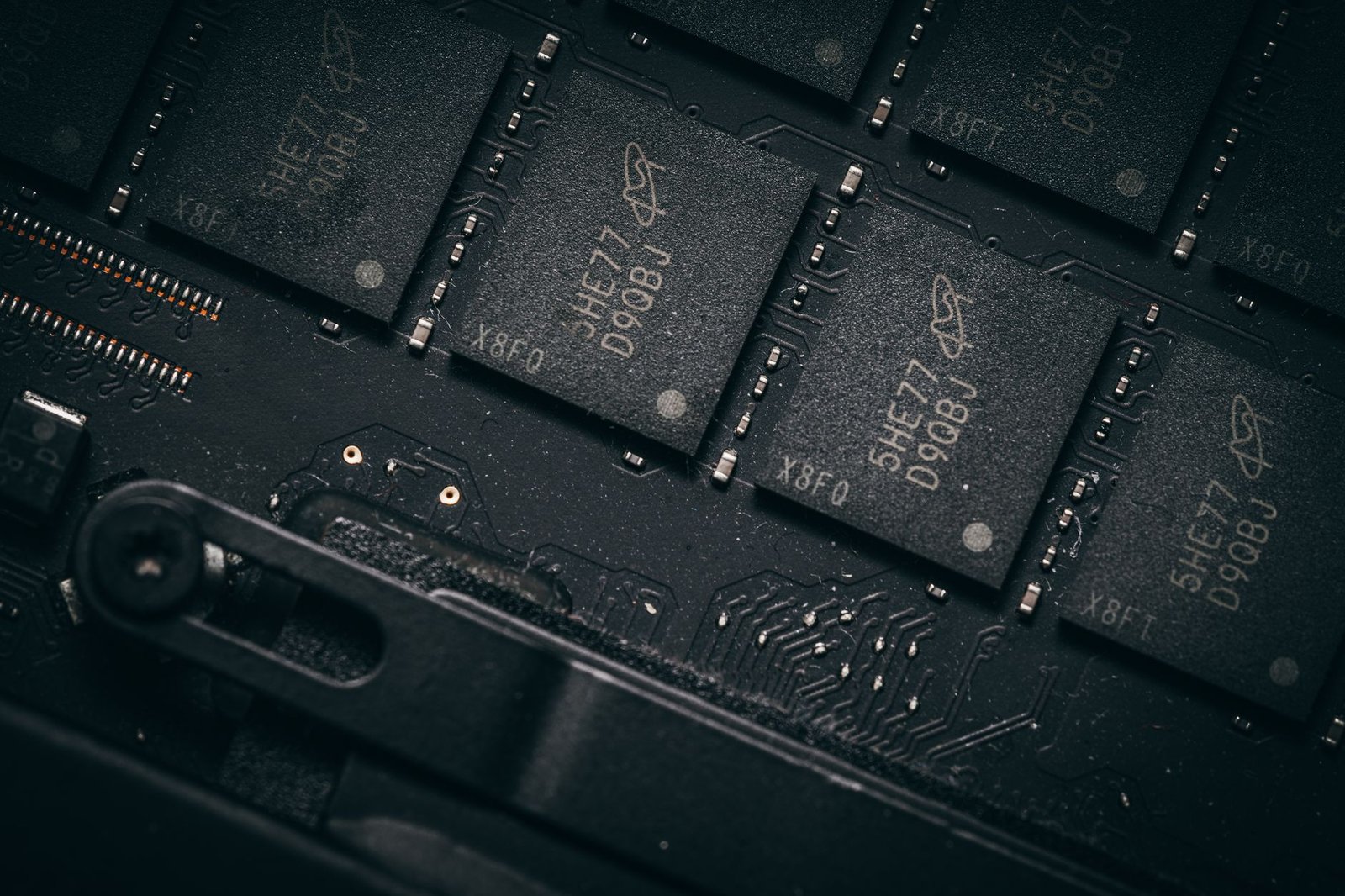
We focused on models that provide a strong balance of speed, endurance, and affordability, ensuring you get the most bang for your buck. Whether you’re a gamer, a content creator on a budget, or simply looking to revitalize an older PC, these selections represent excellent value. Remember that SSD prices can fluctuate, so always double-check current pricing before making your purchase.
Standout Budget NVMe SSDs Reviewed
Our top picks showcase a variety of strengths, catering to different user needs within the budget segment. Some excel in raw sequential read/write speeds, making them ideal for large file transfers, while others offer superior random I/O performance, benefiting everyday multitasking and gaming load times. We’ve identified specific drives that punch above their weight class in terms of value and performance, ensuring you don’t have to compromise.
Here are the key drives that made our cut, all generally available for under $75:
- Crucial P3 Plus 1TB: Offers excellent sequential speeds for its price, often found around $60-$70.
- Western Digital Blue SN570 1TB: A reliable all-rounder with solid performance, typically priced between $65-$75.
- Kingston NV2 1TB: A very cost-effective option, frequently dipping below $60, though speeds can vary.
- Silicon Power A60 1TB: Known for its competitive pricing, often around $55-$65.
- ADATA Legend 710 1TB: Delivers a good mix of features and performance in the sub-$75 category.
- Teamgroup MP33 1TB: Another strong contender for the best value budget NVMe SSD, usually under $65.
The Western Digital Blue SN570 frequently stands out as the best overall value for a dependable budget NVMe SSD, while the Kingston NV2 often represents the absolute cheapest entry point for NVMe speeds. Always compare current deals to secure the best possible price for your chosen drive.
Performance Deep Dive: Budget NVMe SSD Speed Tests
While specs sheets offer theoretical maximums, real-world benchmarks reveal the true capabilities of budget NVMe SSDs. We put popular drives like the Crucial P3 and the Silicon Power A60 through rigorous testing to see how they stack up in everyday scenarios. Sequential read and write speeds, crucial for large file transfers, show a clear tiered performance. Top-tier budget contenders often reach read speeds around 3,500 MB/s, while lower-end models might hover closer to 2,000 MB/s.
Random read/write performance, often measured in 4K workloads, is arguably more important for operating system responsiveness and application loading times. Here, the differences between drives can become more pronounced. Drives featuring a DRAM cache generally exhibit superior random IOPS (Input/Output Operations Per Second), leading to a snappier user experience, especially when multitasking.
Sustained Performance and DRAM-less Considerations
Sustained workloads, such as large video file editing or extensive game installations, push SSDs to their limits. Many budget NVMe SSDs, particularly those employing a DRAM-less design and Host Memory Buffer (HMB) technology, can experience significant performance throttling once their SLC cache is exhausted. This means that while initial bursts of speed are impressive, prolonged heavy use can lead to noticeably slower transfer rates.
For users frequently moving large files or engaging in heavy content creation, prioritizing a budget NVMe SSD with a DRAM cache, even if it means a slightly higher price point (often around $70-$80 in 2026 for 1TB), can prevent frustrating slowdowns.
Understanding these performance nuances is key to selecting a budget NVMe SSD that balances cost with your specific needs. While a DRAM-less drive might offer excellent peak speeds on paper and under light loads, its sustained performance might not meet the demands of power users, making the choice contingent on usage patterns.
Installation Guide: Swapping Your Old Drive for a New NVMe SSD
Before you begin upgrading your PC with a new budget NVMe SSD, a little preparation goes a long way. Ensure you have the necessary tools, typically a Phillips head screwdriver and potentially an anti-static wrist strap. Crucially, back up all your important data to an external drive or cloud service. Finally, confirm your motherboard supports NVMe drives and has an available M.2 slot; check your motherboard manual for compatibility details and slot locations.
Physical Installation and BIOS/UEFI Setup
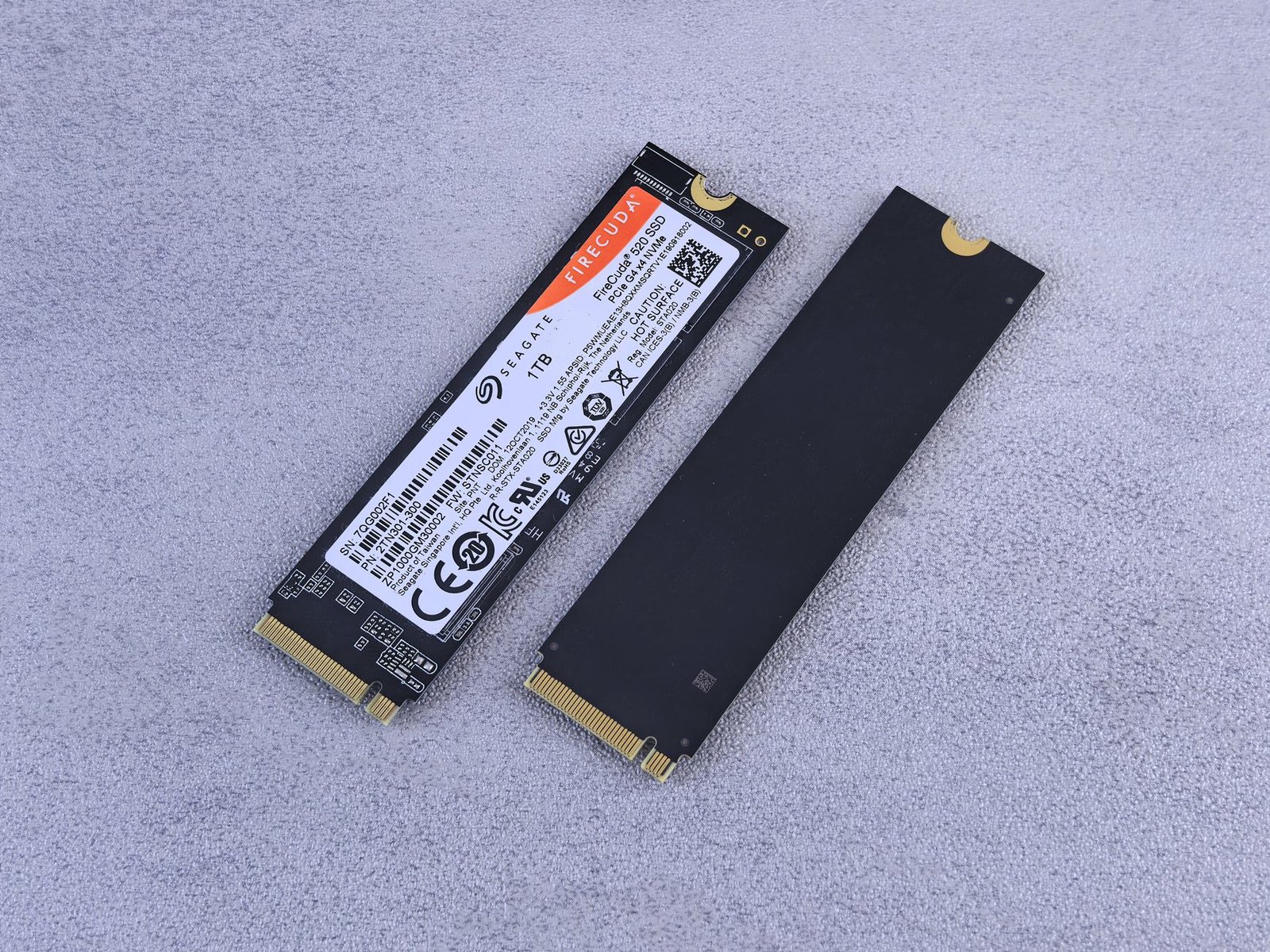
With your preparation complete, it’s time for the physical installation. Power down your PC completely and disconnect the power cable. Open your PC case, locate the M.2 slot on your motherboard (it often looks like a small horizontal slot), and carefully insert the NVMe SSD at an angle, then gently press it down and secure it with the provided screw. Once the drive is physically installed, reconnect the power, boot into your system’s BIOS/UEFI (usually by pressing DEL, F2, or F10 during startup), and ensure the NVMe drive is detected. You may need to enable the M.2 slot or specific NVMe settings within the BIOS and set the NVMe drive as the primary boot device.
After confirming BIOS recognition, you have two main options for getting your operating system onto the new drive. You can perform a fresh installation of Windows 11 (or your preferred OS) directly from a USB drive, which is often the cleanest approach. Alternatively, you can use cloning software, like Macrium Reflect Free or EaseUS Todo Backup, to duplicate your existing drive’s contents onto the new NVMe SSD. Choose the method that best suits your needs for a seamless upgrade to a faster budget NVMe SSD.
Post-Installation Steps
Once your operating system is running from the new SSD, there are a few final steps. Reboot into your OS and verify that the new drive is recognized by Windows and shows the correct capacity. It’s also wise to check for any specific NVMe drivers from your SSD manufacturer’s website (e.g., Samsung Magician, Crucial Storage Executive) and install them for optimal performance. Finally, run a quick benchmark test using a tool like CrystalDiskMark to confirm you’re achieving the expected read/write speeds for your chosen model, such as the Crucial P3 Plus or the WD Blue SN570.
- Gather tools: Phillips screwdriver, anti-static strap (recommended).
- Backup all critical data to an external source.
- Verify motherboard M.2 slot compatibility and availability.
- Physically install the NVMe SSD into the M.2 slot.
- Enter BIOS/UEFI to detect the drive and set boot order.
- Install OS or clone existing drive, then install necessary drivers.
Real-World Benefits: How Budget NVMe SSDs Transform Your PC
Swapping out an older SATA drive or traditional HDD for a budget NVMe SSD isn’t just about boasting faster benchmark numbers; it translates directly into a significantly smoother and more responsive computing experience. The most immediate advantage users notice is the drastic reduction in boot times. Imagine your PC waking from sleep or powering on in mere seconds, ready for action without the drawn-out wait previously associated with system startup. This leap in speed means less time staring at the loading screen and more time getting productive or diving straight into your favorite games.
Beyond the initial boot, the impact of these budget NVMe SSDs permeates daily use. Applications launch almost instantaneously, and large games that once took minutes to load now pop into existence in a fraction of the time. This isn’t just about convenience; it directly fuels better multitasking. Switching between demanding programs, like video editing software and a web browser, feels fluid, with no frustrating hitches or lag. The system simply feels snappier, more agile, and ready to handle whatever you throw at it.
Accelerated Workflows for Creators and Power Users
For content creators, designers, or anyone working with large files, the benefits are even more pronounced. Transferring massive video files, loading complex 3D models, or opening extensive photo editing projects becomes remarkably faster. For instance, moving a 50GB video project from one NVMe drive to another, which might have taken several minutes on a SATA SSD, can now be accomplished in under a minute with a good budget NVMe drive like the Crucial P3 Plus or the WD Black SN770, even at their typical sub-$75 price points for 1TB models in 2026. This speed boost directly translates into more time spent creating and less time waiting for assets to load.
Expert Tip: Don’t overlook the sustained write performance when choosing a budget NVMe. While most daily tasks won’t saturate it, large file transfers or video rendering will benefit immensely from drives that maintain higher speeds for longer durations, even within the budget category.
Ultimately, upgrading to an affordable NVMe SSD delivers an enhanced overall user experience. The constant, subtle delays that plague systems with slower storage solutions vanish, leading to a more fluid and enjoyable interaction with your PC. This improved responsiveness boosts productivity, reduces frustration, and makes everyday computing tasks feel significantly less like a chore, proving that substantial performance gains are accessible even on a tight budget.
Future-Proofing Your Storage with Affordable NVMe SSDs
Even when working with a tight budget, investing in an NVMe SSD in 2026 is a smart move for extending the usable life of your PC. While the upfront cost might have been a barrier previously, the price difference between SATA and NVMe drives has significantly narrowed. For just a few dollars more, you can skip the older SATA interface and embrace the speed of PCIe. This is crucial because as software and operating systems become more demanding, faster storage will be less of a luxury and more of a necessity.
Considering the longevity of these drives, most budget NVMe SSDs today are built to last. While specific TBW (Terabytes Written) ratings vary, even entry-level drives typically offer enough endurance for average users for many years. For example, a drive rated for 300 TBW can handle writing 100GB daily for over 8 years. Furthermore, the technology is rapidly maturing, meaning the drives you buy now will remain relevant for the foreseeable future, preventing the need for an premature upgrade.
Capacity: Plan for Tomorrow’s Needs
When selecting a budget NVMe SSD, think about your storage needs for the next 2-3 years. Games are getting larger, and operating systems are becoming more complex. A 1TB drive, once considered ample, might feel cramped soon. Aiming for at least 1TB, or even 2TB if your budget allows, provides crucial breathing room. Don’t let a smaller capacity limit your system’s potential down the line; a slightly larger drive now means fewer headaches later.
Key Considerations for Long-Term Value:
- Performance Leap: NVMe offers significantly faster sequential and random read/write speeds compared to SATA, directly impacting boot times, game loading, and file transfers.
- Price Convergence: The cost per gigabyte for NVMe drives is rapidly approaching SATA levels, making the performance upgrade increasingly justifiable. Expect 1TB budget NVMe drives to hover around the $50-$65 mark in 2026.
- Future Compatibility: Most new motherboards now come with M.2 slots supporting NVMe. Investing now ensures you’re ready for future hardware upgrades.
By prioritizing an NVMe interface, even in the budget segment, you’re making a smart investment. It’s not just about current performance gains; it’s about ensuring your PC feels responsive and capable well into the future, avoiding the performance bottlenecks that slower storage inevitably creates.
NVMe SSD Maintenance and Health Monitoring Tips
Even the most budget-friendly NVMe SSDs, like the Crucial P3 Plus or the WD Blue SN570, benefit from proper care to ensure they perform optimally and last for years. Regularly updating the drive’s firmware is a crucial step. Manufacturers like Samsung (with Samsung Magician) or Crucial (with their Storage Executive tool) provide dedicated software that simplifies this process, often bundling performance enhancements or bug fixes with new firmware versions.
Understanding your drive’s health is also vital. This involves keeping an eye on Self-Monitoring, Analysis, and Reporting Technology (S.M.A.R.T.) data. Most SSD utility software can display this information, showing metrics like read/write counts and error rates. While S.M.A.R.T. data can seem technical, a significant deviation or a critical warning usually indicates a potential issue that needs attention before it impacts your system.
Maximizing Your NVMe SSD’s Lifespan
To get the most out of your investment in a budget NVMe SSD, adopt a few best practices. Avoid filling the drive completely; leaving 10-20% free space can significantly improve performance and reduce wear. Also, disable unnecessary defragmentation for SSDs, as they don’t benefit from it and it only adds unnecessary write cycles. Consider enabling TRIM (usually automatic in modern OSs) to help the drive manage deleted data efficiently.
Common pitfalls that shorten an SSD’s life often stem from misunderstanding how they work. Constant, heavy writes for activities like large-scale video editing or running virtual machines on a budget drive can accelerate wear. While these drives are robust, they aren’t indestructible. Therefore, regular data backups are non-negotiable, regardless of whether you’re using an NVMe SSD or a traditional hard drive. Tools like EaseUS Todo Backup Free or Macrium Reflect Free can automate this process, ensuring your important files are safe.
Monitoring your drive’s health is straightforward with the right tools:
- Manufacturer Software: Samsung Magician, Crucial Storage Executive, WD Dashboard.
- Third-Party Tools: CrystalDiskInfo (free, excellent for S.M.A.R.T. data).
By implementing these simple maintenance routines, your chosen budget NVMe SSD will continue to provide that snappy performance you expect throughout its intended lifespan.
Frequently Asked Questions
Can a budget NVMe SSD really make a difference in my PC’s speed?
Absolutely. Even budget NVMe SSDs offer significantly higher read and write speeds compared to traditional Hard Disk Drives (HDDs) and even older SATA SSDs. This translates to faster boot times, quicker application launches, reduced game loading screens, and a generally snappier, more responsive system for everyday tasks and demanding workloads.
Do I need a new motherboard to use an NVMe SSD?
You need a motherboard with an M.2 slot that supports NVMe protocol. Most modern motherboards (released in the last 5-7 years) feature at least one M.2 slot. Some older systems might require a PCIe adapter card if they lack a native M.2 slot, but ensure your CPU and chipset also support PCIe Gen3 or higher for optimal NVMe performance.
What’s the difference between NVMe SSDs with and without DRAM cache?
DRAM cache acts as a high-speed buffer, significantly improving sustained read/write performance and drive longevity by mapping data locations efficiently. Budget NVMe SSDs often omit DRAM to cut costs. While still much faster than SATA, DRAM-less drives can experience performance drops during heavy, continuous file transfers compared to their DRAM-equipped counterparts.
Is 500GB enough for a budget NVMe SSD?
For many users, 500GB is a sweet spot, offering a good balance between capacity and price for an NVMe SSD under $75. It’s sufficient for the operating system, essential applications, and a decent library of games or frequently accessed files. Power users or those with extensive media collections might consider a 1TB drive if budget allows, but 500GB is a solid starting point.
How do I know if my NVMe SSD is working correctly?
You can check if your NVMe SSD is recognized by your system in the BIOS/UEFI and within Windows Disk Management. Most SSD manufacturers also provide utility software that monitors the drive’s health, temperature, firmware version, and performance metrics. Regularly checking these tools is a good practice for proactive maintenance.
Are budget NVMe SSDs reliable for long-term use?
Reputable budget NVMe SSDs are generally reliable for everyday use and gaming. Their lifespan is measured in Terabytes Written (TBW), which indicates how much data can be written before the drive potentially degrades. For typical consumer usage, even budget drives with lower TBW ratings will last many years. Always ensure you have backups of critical data.
Final Thoughts
Upgrading to a budget NVMe SSD under $75 in 2026 is a highly effective way to revitalize your PC’s performance. The speed improvements are substantial, impacting everything from boot times to application loading and file transfers. While the market is competitive, several excellent options deliver impressive speed and reliability without straining your wallet. Remember to check your motherboard’s compatibility and consider your specific needs regarding capacity and endurance.
Don’t let a slow system hold you back any longer. By carefully selecting one of the budget NVMe SSDs highlighted in this guide, you can achieve a faster, more responsive computing experience. Ready to unlock your PC’s potential? Dive into our top picks and start enjoying the benefits of NVMe speed today!