Running Stable Diffusion 3 locally in 2026 is now more accessible than ever for aspiring AI artists and developers. This beginner’s guide provides a clear, step-by-step walkthrough to help you set up the powerful Stable Diffusion 3 model on your own hardware. We’ll cover everything from essential hardware prerequisites and software installation to optimizing performance for seamless local AI art generation. Get ready to unlock your creative potential without relying on cloud services.
This tutorial is designed for users with little to no prior experience with local AI model deployment, focusing on practical advice and actionable steps to get Stable Diffusion 3 up and running efficiently.
Key Takeaways
- Understand the hardware needed to run Stable Diffusion 3 locally.
- Follow clear instructions for installing Stable Diffusion 3 on your machine.
- Learn optimization techniques for faster and better image generation.
- Troubleshoot common issues encountered during local setup.
- Explore advanced features and customization options.
Understanding Stable Diffusion 3: What’s New for Local Use?
Stable Diffusion 3 (SD3) represents a significant leap forward from its predecessors, particularly for those looking to run AI art generation on their personal hardware. Its redesigned architecture incorporates advancements like a diffusion transformer model, offering enhanced prompt adherence and image quality. This new foundation aims for greater efficiency, a crucial factor for local deployment where resources are finite.
The modularity of SD3 is another key aspect. It allows for more flexible integration and potentially smaller footprint installations compared to monolithic previous versions. For local users in 2026, this translates to a more accessible experience, provided your hardware meets the recommended specifications. However, even with these improvements, running SD3 locally will demand substantial computational power, particularly for high-resolution outputs or complex multi-subject prompts.
Key Features for Local Deployment
When considering SD3 for your own machine, several features stand out:
- Improved Prompt Understanding: Greater accuracy in interpreting nuanced text prompts.
- Enhanced Image Quality: Sharper details and more photorealistic results.
- Modular Design: Potentially adaptable for different hardware configurations.
- Efficiency Gains: Optimized performance for local inference.
- Reduced Artifacts: Less common visual glitches compared to earlier models.
- Control Mechanisms: Finer control over image generation parameters.
Compared to cloud services like Midjourney or DALL-E 3, running SD3 locally offers unparalleled control, privacy, and freedom from subscription fees. You own the output and can iterate endlessly without incurring per-image costs. However, cloud services often provide a more streamlined, plug-and-play experience with less technical overhead and immediate access to the latest features on powerful, maintained hardware. Setting realistic expectations is vital; a consumer-grade RTX 5080 (estimated $800 in 2026) might generate a 1024×1024 image in 10-20 seconds, while higher resolutions or more demanding VRAM configurations could see significantly longer times.
Hardware Requirements for Running Stable Diffusion 3 Locally
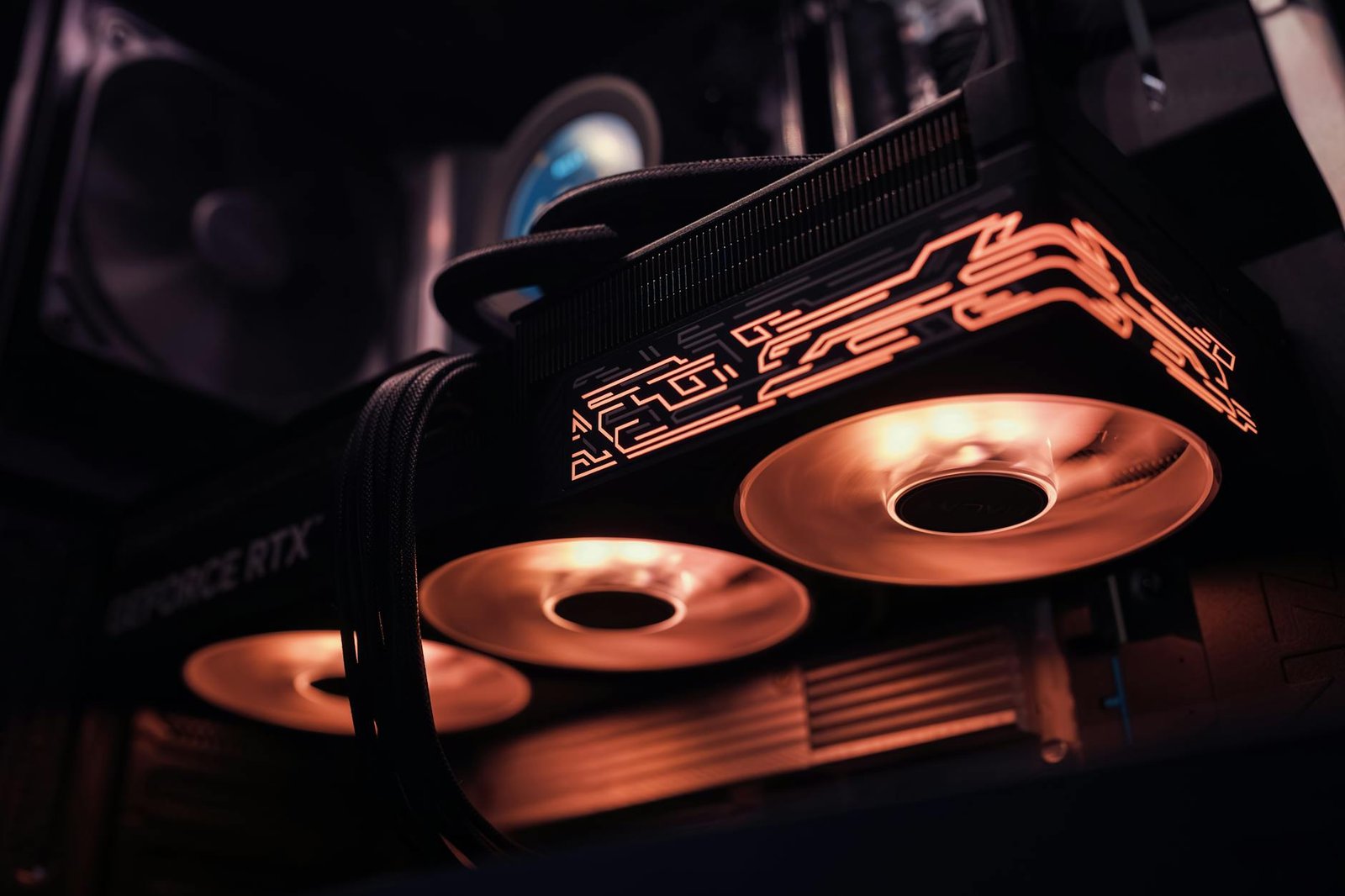
Setting up Stable Diffusion 3 (SD3) on your local machine requires careful consideration of your hardware. The primary bottleneck for generative AI models is typically the Graphics Processing Unit (GPU). For an optimal experience running Stable Diffusion 3 locally, we recommend a modern NVIDIA GPU with at least 12GB of VRAM, such as the GeForce RTX 4070 Super or higher. While some older cards with 8GB VRAM might run basic models, performance will be significantly slower, and you may encounter out-of-memory errors with larger resolutions or complex prompts.
GPU and System Recommendations
Beyond VRAM, the number of CUDA cores and the GPU’s architecture play a crucial role in inference speed. A higher core count and newer architecture (e.g., NVIDIA Ada Lovelace) translate to faster image generation times. For RAM, aim for at least 32GB, especially if you plan to multitask or run other applications alongside SD3. A capable CPU, like an Intel Core i7 or AMD Ryzen 7 (2026 models or equivalent), will assist in data loading and preprocessing, preventing it from becoming a bottleneck.
| Component | Minimum Spec | Recommended Spec (2026) |
|---|---|---|
| GPU VRAM | 8GB (NVIDIA RTX 3060) | 12GB+ (NVIDIA RTX 4070 Super/4080 Super) |
| System RAM | 16GB | 32GB+ |
| CPU | Intel Core i5 / AMD Ryzen 5 (Recent Gen) | Intel Core i7 / AMD Ryzen 7 (2026 Models) |
| Storage | 100GB NVMe SSD | 500GB+ NVMe SSD |
Sufficient storage is also key. SD3 models can range from 4GB to over 20GB each, and you’ll need ample space for generated images, checkpoints, and the base software. An NVMe Solid State Drive (SSD) is highly recommended over traditional Hard Disk Drives (HDDs) for faster model loading and data access. Ensure your system has a robust power supply unit (PSU) capable of handling the peak load of your GPU and CPU, and consider aftermarket cooling solutions to prevent thermal throttling during intensive tasks.
Finally, OS compatibility is straightforward for most users. Stable Diffusion 3 runs well on Windows 10/11, recent versions of macOS (especially M-series chips), and various Linux distributions. Ensure your drivers are up-to-date, particularly for NVIDIA GPUs, to leverage the latest CUDA optimizations.
Step-by-Step Installation Guide for Stable Diffusion 3 Locally
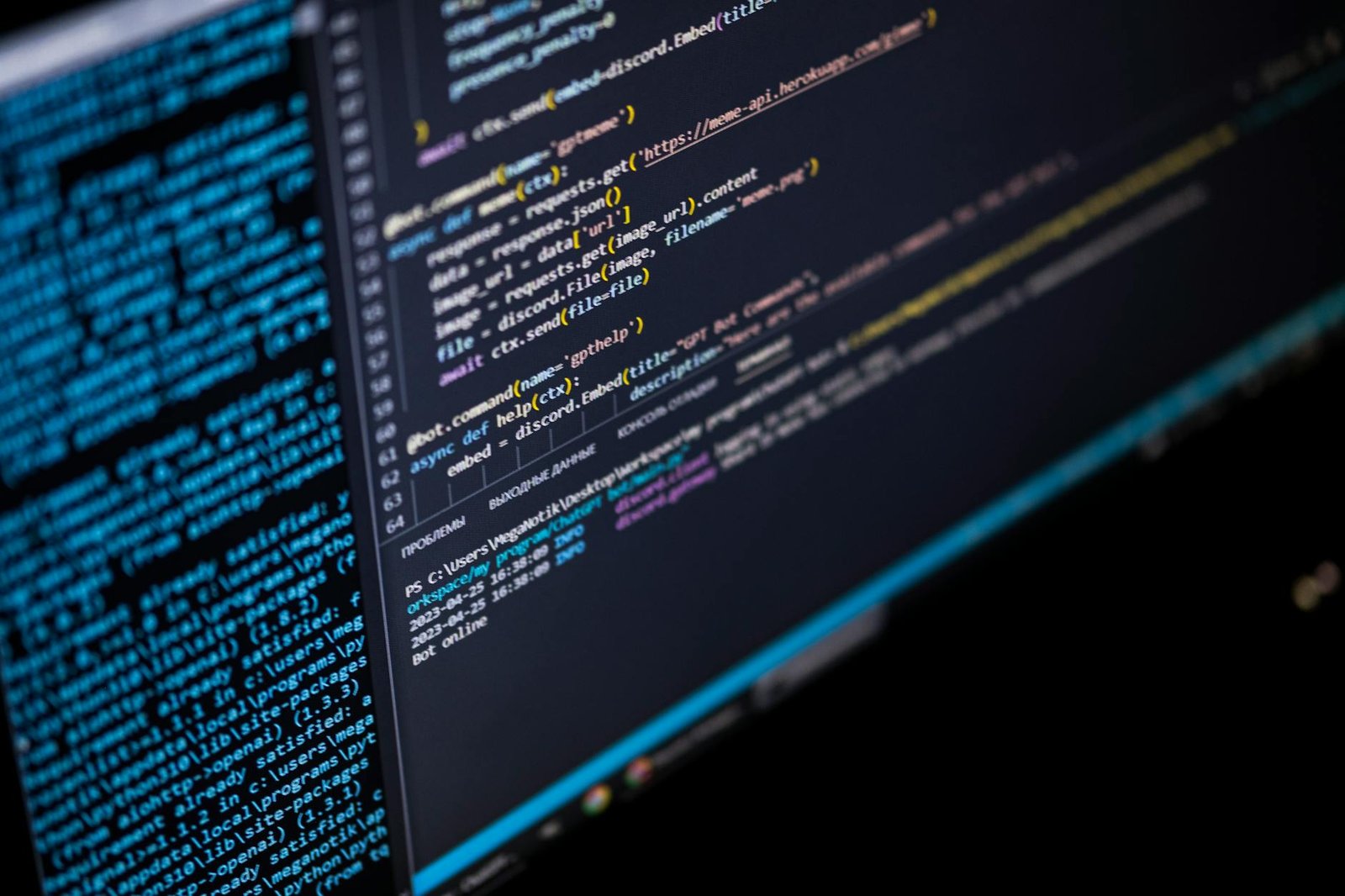
Before diving into Stable Diffusion 3 locally, ensure your system is prepared. This involves installing essential software and drivers. You’ll need Python (version 3.10.6 or later is recommended for 2026 compatibility) and Git for version control. Additionally, verify you have the latest graphics drivers for your NVIDIA or AMD GPU, as these are crucial for performance. A minimum of 16GB RAM is advised, with 32GB or more providing a smoother experience.
Choosing Your Interface and Models
Next, select a user-friendly interface to manage Stable Diffusion 3. Popular choices in 2026 include ComfyUI for its node-based flexibility and various forks of Automatic1111’s Web UI, often optimized for newer models. Download your chosen interface and the Stable Diffusion 3 base models, typically available in formats like `.safetensors`. You might also want to download supplementary LoRAs or embeddings for enhanced creative control.
Installation and Configuration Checklist
The installation process involves several key steps to get Stable Diffusion 3 running smoothly on your local machine. Follow these instructions carefully:
- Install Python 3.10.6 (or newer) and add it to your system’s PATH.
- Install Git from the official Git website.
- Clone your chosen interface’s repository from GitHub using Git commands.
- Download the Stable Diffusion 3 base model files (e.g., SD3-Medium-fp16.safetensors) and place them in the appropriate model directory within your interface’s folder structure.
- Run the interface’s setup script (e.g., `webui-user.bat` or `run.sh`) and let it download any remaining dependencies.
- Configure settings within the interface, such as specifying GPU VRAM allocation and checking compatibility.
After the initial setup, verify the installation by generating a simple image. If you encounter errors like `OutOfMemoryError` or `CUDA error`, consult the interface’s documentation or community forums. Often, reducing batch size or updating drivers can resolve these common installation hiccups when running Stable Diffusion 3 locally.
Optimizing Your Setup for Stable Diffusion 3 Local Performance
Achieving optimal performance when running Stable Diffusion 3 locally involves a multi-faceted approach, focusing on software settings and hardware utilization. Fine-tuning inference parameters is the first step towards balancing generation speed and image quality. Experiment with batch sizes; larger batches can increase throughput but consume more VRAM. Reduce sampling steps for faster results, but be mindful of potential quality degradation. Adjusting the Classifier-Free Guidance (CFG) scale is crucial; higher values adhere more strictly to prompts but can sometimes lead to overbaked images.
VRAM is often the bottleneck for local AI image generation. Leverage optimization techniques like xformers (available via pip install xformers) for significant speedups, especially on NVIDIA GPUs. Model offloading, where parts of the model are moved between VRAM and system RAM, can enable larger models on GPUs with less VRAM, albeit with a performance penalty. For instance, using the `lowvram` or `medvram` flags in popular UIs can automatically apply these optimizations.
Choosing the Right Tools
The selection of samplers and schedulers plays a vital role. While newer schedulers might offer improved convergence, older, well-tested ones like Euler A or DPM++ 2M Karras often provide a good balance of speed and quality for many use cases. Many users find that for Stable Diffusion 3 locally, samplers such as DDIM or UniPC offer competitive speeds without sacrificing the detail you need. Managing multiple models efficiently is also key; avoid loading unnecessary checkpoints into memory. Consider using tools like `safetensors` loaders that allow for quicker switching between models.
Expert Tip: For users with mid-range GPUs (e.g., an NVIDIA RTX 4070 with 12GB VRAM), prioritizing `xformers` and experimenting with batch size 1 alongside 20-30 sampling steps often yields the best compromise between speed (under 5 seconds per image) and quality for SD3.
Ultimately, understanding the impact of your hardware is paramount. A faster CPU can help with initial prompt processing and image upscaling, but the GPU is the primary driver of diffusion speed. A modern GPU like the NVIDIA RTX 4090 (around $1600 in 2026) will dramatically outperform older or lower-tier cards, reducing generation times by more than half for complex prompts and high resolutions.
Generating Your First Images with Stable Diffusion 3 Locally
Now that you have Stable Diffusion 3 up and running on your system, it’s time to create some art. The core of image generation lies in crafting effective prompts. Think of your prompt as a detailed instruction manual for the AI. Start with clear, descriptive keywords that capture the essence of your desired image, such as “photorealistic portrait of an astronaut on Mars, sunset”. Utilize negative prompts to steer the AI away from unwanted elements; for instance, add “low quality, blurry, deformed” to avoid common artifacts. A good prompt structure often follows a pattern: Subject, Action, Setting, Style, and Modifiers.
Beyond the prompt, several parameters significantly influence the output. The resolution determines the image’s pixel dimensions, with higher resolutions demanding more VRAM. The aspect ratio dictates the image’s width-to-height proportion, crucial for scenarios like landscape versus portrait formats. The seed is a numerical value that initializes the generation process; using the same seed with identical prompts and parameters will reproduce an image, invaluable for iterative refinement. Experimenting with these settings is key to achieving predictable and high-quality results when running Stable Diffusion 3 locally.
Controlling Composition and Style
For even greater command over your creations, consider integrating tools like ControlNet or similar advanced conditioning models. These allow you to guide the composition using reference images, depth maps, or pose skeletons, ensuring your generated images align precisely with your vision. For example, you could use a skeletal pose to dictate a character’s stance, even when generating wildly different characters or scenes.
Advanced prompting techniques further enhance your control. Weighted prompts allow you to emphasize specific terms using syntax like “(red car:1.5)” to make the red color more prominent than a simple “red car”. Prompt editing, available in some UIs, lets you dynamically change parts of a prompt during the generation process, enabling subtle but impactful modifications. The process is often iterative; generate an initial image, analyze its strengths and weaknesses, and then refine your prompt, parameters, or use advanced techniques to achieve your desired outcome. Don’t be afraid to generate multiple variations until you land on something you love.
Troubleshooting Common Issues with Stable Diffusion 3 Local Installations
Even with meticulous setup, users might encounter hurdles when running Stable Diffusion 3 locally. Common problems include ‘Out of Memory’ errors, particularly on systems with less than 16GB VRAM, or slow generation times impacting workflow. These can often be mitigated with adjustments to model parameters or system resource management.
Performance Bottlenecks and Image Anomalies
Slow generation can stem from insufficient GPU VRAM, CPU limitations, or inefficient settings. For instance, attempting to generate 1024×1024 images with a complex prompt on a rig with an NVIDIA RTX 3060 (12GB VRAM) might push its limits. Distorted or incorrect image outputs are usually due to model corruption, incorrect parameter settings, or incompatible software dependencies. Ensure you’ve downloaded the correct model files (e.g., the official SD3-Medium checkpoint) and that your drivers are up-to-date.
Resolving Installation and Performance Issues
Installation problems often arise from unmet dependencies, such as specific Python versions (e.g., Python 3.10.x required for many Stable Diffusion 3 environments) or missing libraries like PyTorch. Version conflicts between libraries can also halt your setup. If you’re facing persistent out-of-memory errors, try reducing the image resolution, using smaller batch sizes, or employing techniques like model quantization if supported by your chosen interface. For sluggish performance, consider upgrading your RAM or investing in a GPU with more VRAM; a hypothetical NVIDIA RTX 5080 Ti in 2026 might offer a significant boost over previous generations.
When you encounter persistent issues, leveraging community resources is invaluable. Here are some common solutions and places to seek help:
- Out of Memory Errors: Lower resolution, use –medvram or –lowvram flags (if supported), disable upscalers during initial generation.
- Slow Generation: Ensure GPU acceleration is enabled, close unnecessary background applications, check CPU/GPU utilization during generation.
- Distorted Images: Re-download model files, verify prompt syntax, reset parameters to default, check for VAE issues.
- Installation Conflicts: Use virtual environments (like venv or Conda), carefully check dependency lists, consult specific installation guides for your OS (Windows, Linux, macOS).
- Community Support: Official Stable Diffusion forums, Reddit communities (e.g., r/StableDiffusion), Discord servers dedicated to AI art generation.
Active participation in these communities can provide timely solutions and insights from fellow users running Stable Diffusion 3 locally.
Advanced Techniques for Stable Diffusion 3 Local Users
Once you’ve mastered the basics of running Stable Diffusion 3 locally, a universe of advanced techniques opens up. Fine-tuning is a cornerstone of personalization. Techniques like LoRA (Low-Rank Adaptation) and Dreambooth allow you to train the model on your own datasets, creating highly specific styles or subjects. Imagine training SD3 to generate images in the distinct artistic style of a lesser-known 2025 indie comic artist, or to consistently render your own 3D character model with photorealistic accuracy. These methods, while requiring more computational resources and data preparation, unlock unparalleled creative control for your local Stable Diffusion 3 setup.
Beyond model training, integrating Stable Diffusion 3 into existing creative workflows significantly boosts productivity. Many artists leverage SD3’s API for seamless integration with software like Adobe Photoshop or Blender. For instance, you could use SD3 to generate concept art directly within a Photoshop document or create unique textures for 3D models in Blender. Exploring alternative User Interfaces (UIs) beyond the default web UI is also crucial. Projects like ComfyUI offer node-based workflows that provide granular control over the generation process, while others focus on simplifying complex tasks or adding unique features. The burgeoning ecosystem of extensions for popular UIs continues to expand, offering everything from real-time previewing to advanced inpainting tools.
Streamlining Your Generation Pipeline
For users generating large volumes of images, scripting and automation are essential. Languages like Python offer powerful libraries to interact with Stable Diffusion 3 models, enabling batch generation, automated prompt engineering, and even dynamic upscaling pipelines. This is where running Stable Diffusion 3 locally truly shines, allowing for rapid iteration without incurring external API costs or waiting times. Model merging is another fascinating area, letting you combine the weights of two or more pre-trained models to create entirely new generative capabilities. This could involve merging a photorealism model with a fantasy art model to achieve unique hybrid styles.
Expert Tip: For optimal fine-tuning with LoRAs in 2026, aim for datasets of 50-100 high-quality, consistent images and utilize learning rates between 1e-5 and 5e-5 for Dreambooth. Monitor your loss curves closely to prevent overfitting.
The Future of Running Stable Diffusion 3 Locally
The landscape of local AI deployment is rapidly evolving, promising even more accessible and powerful experiences for users running models like Stable Diffusion 3. We anticipate significant strides in AI model efficiency, meaning future iterations of SD3 might require less VRAM and computational power, making high-end local generation achievable on a wider range of hardware, perhaps even mainstream gaming PCs by late 2026.
Emerging hardware trends are set to further democratize local AI. Expect to see continued performance gains in consumer GPUs, with NVIDIA’s Blackwell architecture and AMD’s RDNA 4 potentially offering substantial leaps in AI-specific processing. Furthermore, specialized NPUs (Neural Processing Units) in next-generation CPUs and dedicated AI accelerators could offload significant portions of the generation workload, reducing reliance on expensive discrete graphics cards for certain tasks.
Hardware and Software Synergies
These hardware advancements will undoubtedly unlock new features and capabilities within Stable Diffusion 3 updates. Imagine near real-time iterative refinement of images or the seamless integration of complex control mechanisms directly within the local interface. We might also see breakthroughs in multimodal AI, allowing SD3 to understand and generate content based on audio or video inputs, all processed securely on your personal machine.
The increasing emphasis on privacy and data ownership further bolsters the case for running advanced AI models locally. By keeping your data and your generated creations on your own hardware, you maintain complete control and avoid potential privacy concerns associated with cloud-based services. This local control is paramount as AI becomes more integrated into creative workflows.
Staying Ahead of the Curve
To keep pace with these exciting developments for running Stable Diffusion 3 locally, actively follow these practices:
- Monitor announcements from Stability AI and major hardware manufacturers (e.g., NVIDIA, AMD, Intel).
- Engage with online communities such as Reddit (r/StableDiffusion) and dedicated Discord servers.
- Experiment with beta releases and opt-in programs when available.
- Consider hardware upgrades strategically, focusing on VRAM capacity and AI-acceleration features in future purchases.
The future is bright for local AI enthusiasts, offering unprecedented creative freedom and control.
Frequently Asked Questions
What are the minimum hardware requirements for Stable Diffusion 3 locally?
To run Stable Diffusion 3 locally, a minimum of 8GB VRAM on your GPU is recommended, though 12GB or more is ideal for better performance and larger resolutions. You’ll also need a capable multi-core CPU, at least 16GB of RAM, and ample SSD storage (50GB+ for models and software). Ensure your operating system is up-to-date and compatible with the necessary drivers.
Can I run Stable Diffusion 3 on a Mac?
Yes, running Stable Diffusion 3 locally on a Mac is possible, particularly on newer Apple Silicon (M1, M2, M3) chips which offer unified memory architecture. Performance may vary compared to dedicated NVIDIA GPUs, but optimized versions of interfaces like ComfyUI and diffusers are available. Ensure you have the latest macOS version and follow specific installation guides for Apple Silicon.
How much faster is Stable Diffusion 3 locally compared to online services?
Generation speed locally depends heavily on your hardware. High-end GPUs can produce images in seconds to minutes, potentially faster than some free online services limited by queue times or processing power. However, very powerful cloud services might still offer faster results if your local setup is not top-tier. Local generation offers more control and privacy, which is often the primary advantage.
What’s the difference between Stable Diffusion 3 and previous versions for local use?
Stable Diffusion 3 introduces significant architectural improvements, including a new diffusion transformer model, leading to better prompt adherence, improved image quality, and potentially more efficient resource usage. While earlier versions required specific configurations, SD3 aims for greater versatility. However, newer models often demand more VRAM and computational power, making hardware assessment crucial for local deployment.
How do I troubleshoot ‘Out of Memory’ errors when running SD3 locally?
Out of memory errors typically occur when your GPU doesn’t have enough VRAM. Try reducing the image resolution, batch size, or enabling VRAM optimization flags within your Stable Diffusion interface (like `–medvram` or `–lowvram` in some UIs, or using optimizations like `xformers` if available). Closing other GPU-intensive applications can also free up resources.
Is it worth running Stable Diffusion 3 locally in 2026?
Absolutely, running Stable Diffusion 3 locally in 2026 is highly recommended for users prioritizing creative control, privacy, and cost-efficiency over time. While initial hardware investment is required, it eliminates subscription fees and allows for extensive customization and experimentation without usage limits. As models become more optimized, local performance will continue to improve, making it a sustainable choice for artists and hobbyists.
Final Thoughts
You’ve now got a solid foundation for running Stable Diffusion 3 locally in 2026. From understanding the necessary hardware to navigating the installation and optimization process, this guide has equipped you with the knowledge to bring powerful AI art generation directly to your machine. Remember that patience and experimentation are key; don’t be discouraged by initial challenges. The ability to generate images locally offers unparalleled creative freedom and control over your artistic output.
Ready to start creating? Begin by assessing your current hardware against the recommended specifications and proceed with the installation steps outlined. Explore different prompts and settings, and join online communities to share your work and learn from others. Your AI art journey starts now!