Running Stable Diffusion 3 locally on a mid-range PC in 2026 is now more accessible than ever. This guide will walk you through the process, covering hardware requirements, software setup, and optimization techniques to ensure a smooth experience. You’ll learn how to leverage your existing hardware for powerful AI image generation without relying on cloud services.
We’ll break down the essential steps, from choosing the right version of SD3 to configuring your system for optimal performance. Whether you’re an artist, developer, or hobbyist, this tutorial provides the knowledge needed to get started with local Stable Diffusion 3 on a budget.
Key Takeaways
- Ensure your PC meets the minimum hardware requirements for Stable Diffusion 3.
- Choose the correct Stable Diffusion 3 model variant for your hardware capabilities.
- Follow step-by-step instructions for installing and configuring the necessary software.
- Apply optimization techniques to maximize performance on mid-range hardware.
- Troubleshoot common issues encountered during local Stable Diffusion 3 setup.
Understanding Stable Diffusion 3 and Local Deployment
Stable Diffusion 3 (SD3) represents a significant leap forward in text-to-image generation technology. Unlike its predecessors, SD3 offers enhanced photorealism, improved prompt adherence, and better handling of complex compositional elements. This advanced model, developed by Stability AI, is poised to become a cornerstone for AI art enthusiasts and professionals alike.
Running SD3 locally on your own hardware provides distinct advantages over relying on cloud-based services. Local deployment offers unparalleled control over your generation process, ensures data privacy without uploading sensitive prompts or generated images, and eliminates recurring subscription fees common with online platforms. Furthermore, you avoid potential latency issues and gain the freedom to experiment without usage caps.
Key Components for Local Operation
Successfully running Stable Diffusion 3 locally involves understanding its core components:
- Model Weights: These are the large files containing the learned parameters of the SD3 neural network. Different versions and sizes exist, impacting performance and quality.
- Inference Engine: This is the software that loads the model weights and executes the diffusion process to generate images from text prompts. Popular choices in 2026 include optimized versions of PyTorch and ONNX Runtime.
- User Interface (UI): A graphical front-end, such as Automatic1111’s Stable Diffusion Web UI or ComfyUI, simplifies interaction, allowing users to input prompts, adjust settings, and manage generations.
- Hardware: A capable GPU (Nvidia RTX 40-series or newer recommended), sufficient RAM (32GB+), and fast storage are crucial for reasonable generation speeds.
The underlying architecture of SD3, incorporating diffusion transformers, is more computationally intensive but offers superior results. However, advancements in model optimization and inference techniques mean that running SD3 locally on mid-range PCs is not only feasible but practical by 2026. Optimized models and efficient engines are reducing the VRAM and processing power requirements, making local deployment accessible for many users who might have found previous versions prohibitive. This guide will help you navigate the process of setting up your own stable diffusion 3 local instance.
Hardware Requirements for Stable Diffusion 3 Local Setup
Running Stable Diffusion 3 locally on mid-range hardware in 2026 is achievable, but requires careful consideration of your components. The Graphics Processing Unit (GPU) is the single most critical piece of hardware, as it performs the heavy lifting for model inference. VRAM (Video RAM) is the primary bottleneck; aim for at least 12GB of VRAM for comfortable 1024×1024 image generation, with 16GB or more providing a significantly smoother experience and allowing for larger batch sizes or higher resolutions. While NVIDIA GPUs like the RTX 4070 (12GB) or RTX 4080 (16GB) are excellent choices, AMD options with comparable VRAM are also becoming more viable.
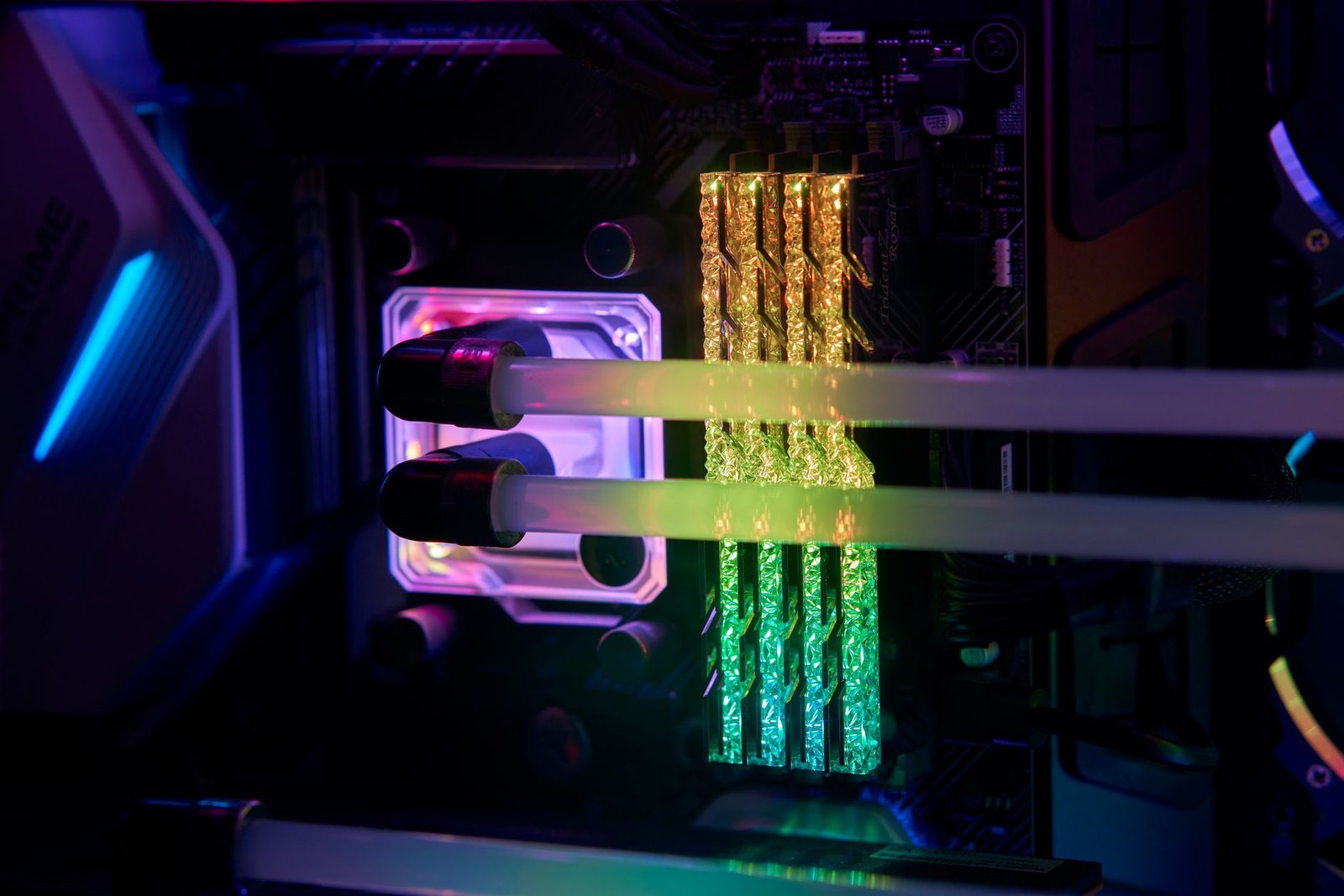
The Central Processing Unit (CPU) plays a supporting role but is still important for pre- and post-processing tasks, as well as managing the overall workflow. A modern 6-core or 8-core processor, such as an Intel Core i5-13600K or AMD Ryzen 5 7600X, will prevent bottlenecks. System Random Access Memory (RAM) is crucial for loading the Stable Diffusion models themselves. We recommend a minimum of 32GB of DDR4 or DDR5 RAM to ensure models load quickly and without errors. Insufficient RAM can lead to slow loading times or outright failure to load the model.
Storage and Power Considerations
For storage, a Solid State Drive (SSD) is non-negotiable for a fast and responsive experience. The models are large, often tens of gigabytes each, and loading them from a traditional Hard Disk Drive (HDD) will be painfully slow. Ensure you have at least 1TB of SSD storage, with 2TB recommended if you plan to experiment with multiple models and LoRAs. A 750W to 850W 80+ Gold certified power supply is advisable to handle the peak power draw of modern GPUs and CPUs, especially during extended generation sessions. Adequate cooling, either through a well-ventilated case with multiple fans or an aftermarket CPU cooler, is essential to prevent thermal throttling and ensure component longevity.
| Component | Minimum (2026 Mid-Range) | Recommended (2026 Mid-Range) |
|---|---|---|
| GPU (VRAM) | NVIDIA RTX 3080 (10GB) / AMD RX 6800 (16GB) | NVIDIA RTX 4070 Ti (12GB) / RTX 4080 (16GB) |
| CPU | 6-Core (e.g., Ryzen 5 5600X, Intel i5-12400F) | 8-Core (e.g., Ryzen 7 7700X, Intel i5-13600K) |
| RAM | 16GB DDR4 | 32GB DDR5 |
| Storage | 500GB NVMe SSD | 1TB NVMe SSD (2TB Recommended) |
| Power Supply | 650W 80+ Bronze | 750W 80+ Gold |
Choosing the Right SD3 Model Variant for Your PC
Stable Diffusion 3 (SD3) arrives in various parameter sizes, each offering a unique balance between image quality, generation speed, and hardware requirements. The primary variants you’ll encounter are typically the 2 billion (2B) and 8 billion (8B) parameter models. Larger models generally produce more detailed and coherent images, but they demand significantly more VRAM and processing power. For a mid-range PC in 2026, often equipped with 12-16GB of VRAM, the 2B model might be your most practical option for faster iterations, while the 8B model may require careful optimization or potentially slower generation times.
Understanding this trade-off is crucial for running stable diffusion 3 local effectively. A smaller model might produce slightly less intricate results but will run smoothly, allowing for quicker experimentation and more creative exploration within your PC’s limits. Conversely, opting for the largest model available without adequate hardware can lead to frustratingly slow generations or even out-of-memory errors, negating the benefits of its potential quality.
Model Sizes and Hardware Needs
When selecting an SD3 model, consider the following factors:
- 2B Parameter Models: Ideal for systems with 8-12GB VRAM. Offers a good balance of speed and quality for everyday use.
- 8B Parameter Models: Best suited for 16GB+ VRAM. Delivers higher fidelity but requires more processing power.
- Quantized Versions: Look for models like `sd3-medium-q4_K_M.gguf` (hypothetical example) which are smaller in file size and require less VRAM, often with a minor quality reduction.
- Pruned/Smaller Architectures: Some community efforts may release variants with fewer layers or parameters, specifically targeting lower-end hardware.
Always check the recommended VRAM and RAM specifications provided by the model’s creator. For instance, a 2B model might list a minimum requirement of 8GB VRAM for basic functionality, while the 8B could suggest 16GB or more for optimal performance.
Downloading and Compatibility
Official SD3 model weights are typically available through platforms like Hugging Face. Community-tested versions, often optimized for specific inference software like ComfyUI or Automatic1111’s Stable Diffusion WebUI, can also be found there or on related forums. Before downloading, verify that the model format (e.g., `.safetensors`, `.gguf`) is compatible with your chosen inference software. Most modern UIs support standard formats, but it’s wise to confirm, especially when dealing with newer or community-derived variants, to ensure a smooth local stable diffusion 3 experience.
Setting Up Your Environment for Stable Diffusion 3 Locally
Before you can harness the power of Stable Diffusion 3 on your mid-range PC, a well-configured environment is crucial. This involves installing the right software and ensuring your hardware is ready for the demanding task of local AI image generation. Start by ensuring you have Python 3.10 or newer installed; many AI projects are optimized for specific Python versions. You’ll also need to install essential libraries like PyTorch, Transformers, and potentially others depending on your chosen inference framework.

GPU Acceleration Setup
To achieve reasonable generation speeds with Stable Diffusion 3 locally, GPU acceleration is non-negotiable. For NVIDIA users, this means installing the correct CUDA Toolkit version compatible with your PyTorch installation and your graphics card drivers. AMD users will need to set up ROCm, following the official documentation to ensure compatibility with your specific GPU model and operating system. This step can sometimes be tricky, so consult the documentation for your chosen inference engine for specific recommendations.
Choosing and Installing an Inference Engine
Several excellent options exist for running Stable Diffusion models. The Hugging Face Diffusers library provides a flexible and Pythonic way to load and run models, making it a popular choice for developers. Alternatively, UIs like ComfyUI offer a node-based visual interface, which can be more intuitive for some users and allows for complex workflow creation. Specific forks of Stable Diffusion 3, often found on GitHub, might offer optimized performance or unique features tailored for this model. Research these options to see which best fits your workflow and technical comfort level.
Expert Tip: Always check the minimum VRAM requirements for the specific Stable Diffusion 3 model weights you intend to download. While 8GB might suffice for smaller variants or lower resolutions, 12GB or even 16GB VRAM is often recommended for smoother operation and higher-quality outputs on mid-range hardware.
Once your inference engine is installed, you’ll need to download the Stable Diffusion 3 model weights. These are typically large files (several gigabytes), so ensure you have ample storage space and a stable internet connection. Finally, perform a basic verification test, such as running a simple text-to-image prompt, to confirm that your setup is functioning correctly before diving into more complex tasks.
Optimizing Stable Diffusion 3 Performance on Mid-Range Hardware
Achieving smooth Stable Diffusion 3 local performance on mid-range hardware in 2026 hinges on careful optimization. Even with GPUs like the NVIDIA GeForce RTX 4070 Super (priced around $600 in early 2026), default settings can strain resources. Fine-tuning inference parameters is your first line of defense. Experimenting with fewer sampling steps (e.g., reducing from 40 to 20-25) can drastically cut generation time with minimal visual quality loss, especially with samplers like DPM++ 2M Karras.
The CFG scale (Classifier-Free Guidance) is another crucial lever. Values between 5 and 8 generally offer a good balance between prompt adherence and creative freedom. Pushing it too high can lead to artifacts, while too low may result in generic outputs. For memory-intensive tasks, enabling mixed-precision inference is vital. Utilizing FP16 (half-precision) or BF16 (Brain Floating Point) reduces VRAM usage by half compared to FP32, significantly improving stability and speed on compatible hardware.
Advanced Memory and Speed Techniques
Model quantization offers further VRAM savings. Techniques like GPTQ or AWQ can reduce model file sizes and memory footprints, allowing larger models or higher resolutions to fit within your GPU’s memory. For instance, a 4-bit quantized model might consume 4GB less VRAM than its FP16 counterpart. Efficient batch processing, while more beneficial for high-end cards, can still yield minor improvements on mid-range systems by processing multiple images simultaneously if VRAM permits, reducing per-image overhead.
Finally, leverage the specific optimizations built into your chosen Stable Diffusion UI or engine. Many popular interfaces, such as Automatic1111’s Stable Diffusion WebUI or ComfyUI, offer integrated options for memory management, VRAM offloading, and accelerated inference pipelines. Ensure you are using updated versions (e.g., WebUI v2.0 or later) and exploring their performance-tuning sections. These tailored features are often the easiest way to squeeze maximum performance out of your hardware for Stable Diffusion 3.
Essential Tools and UIs for Local Stable Diffusion 3
Running Stable Diffusion 3 locally, especially on mid-range hardware, hinges on selecting the right user interface (UI). These interfaces abstract away much of the complexity, offering intuitive ways to generate images. While Stable Diffusion 3 is new, established UIs are rapidly adapting. For 2026, expect seamless integration.

Several popular UIs are leading the charge in making local Stable Diffusion 3 accessible. ComfyUI is highly regarded for its node-based workflow, offering granular control ideal for advanced users. Automatic1111’s Stable Diffusion Web UI, a long-time favorite, is known for its extensive features and active community support, though compatibility with SD3 may require specific forks or updates by early 2026. InvokeAI provides a more polished, artist-friendly experience with a unified canvas and robust features.
Choosing the right UI can significantly impact your workflow and resource usage. ComfyUI’s modular nature can be very efficient, while Automatic1111 might offer more out-of-the-box features but can be more resource-intensive. For users prioritizing ease of use and a guided experience, InvokeAI is a strong contender. Fortunately, most of these interfaces are free and open-source, minimizing initial costs.
Interface Features and Installation
When setting up your local Stable Diffusion 3 environment, consider these key UI aspects:
- ComfyUI: Node-based, highly customizable, excellent for complex workflows and precise control. Installation is typically straightforward via Git clone.
- Automatic1111 (if compatible): Feature-rich, vast extension support, large community. Installation often involves Python and Git.
- InvokeAI: Unified canvas, artist-focused tools, streamlined interface. Installation is generally user-friendly via pip or an installer.
- Command-Line Interface (CLI): For ultimate control and scripting, CLIs offer direct interaction with the model, bypassing graphical overhead but requiring technical expertise.
- Resource Demands: ComfyUI and CLI versions are often the most lightweight, while feature-rich GUIs like Automatic1111 may consume more VRAM and RAM.
Installing a user-friendly interface is the first step toward harnessing the power of local Stable Diffusion 3. We recommend starting with InvokeAI or ComfyUI for a smoother onboarding process on mid-range systems, aiming for minimal setup friction to get you generating images quickly.
Troubleshooting Common Stable Diffusion 3 Local Issues
Encountering issues while running Stable Diffusion 3 locally, even on capable mid-range hardware from 2026, is not uncommon. The most frequent hurdle is Out of Memory (OOM) errors, often indicated by messages like CUDA out of memory. This typically happens when your GPU lacks sufficient VRAM to load the model or process the image. Solutions include reducing the image resolution, disabling certain optimizations like attention slicing if your VRAM is very tight, or upgrading your GPU to a model with more VRAM, such as an NVIDIA RTX 5070 Ti (estimated $550 in 2026) which offers 16GB.
Slow inference speeds can be frustrating, turning a quick generation into a lengthy wait. This is often a bottleneck in either your GPU processing power or insufficient system RAM, especially if you are running a larger model variant. Ensure your graphics drivers are up-to-date for optimal performance. Sometimes, simply closing other memory-intensive applications frees up crucial resources. For those pushing the limits, consider a system RAM upgrade to 32GB DDR5, which is becoming standard for gaming PCs.
Installation and Model Loading Glitches
Installation problems, often stemming from conflicting Python environments or missing dependencies (like specific CUDA toolkit versions), can prevent Stable Diffusion 3 from running altogether. Double-check the official installation guide for the required Python version (e.g., Python 3.10.x) and ensure all libraries are installed correctly using pip or conda. Model loading failures, indicated by errors like “RuntimeError: [enforce fail at … ] /opt/conda/…/aten/src/THC/generic/THCTensorMath.cu:XX :” might mean the model file is corrupted or not in the expected format. Try re-downloading the model weights from a trusted source.
Expert Tip: Before diving deep into troubleshooting, always verify your system meets the minimum requirements specified for the Stable Diffusion 3 version you are attempting to run. Small inconsistencies here can cause cascading failures.
When specific error messages appear, a quick search on platforms like GitHub issues, Reddit (e.g., r/StableDiffusion), or dedicated Discord servers can often yield solutions. Community members frequently share fixes for obscure errors, saving you significant time. Understanding common messages like “AttributeError” (a method or property is missing) or “ImportError” (a module cannot be found) is key to diagnosing the root cause and finding targeted help for your stable diffusion 3 local setup.
Advanced Tips and Future of Stable Diffusion 3 Locally
To get the absolute most out of your stable diffusion 3 local environment, integrating lightweight fine-tuning methods like Low-Rank Adaptations (LoRAs) is essential. Modern 16-rank LoRA adapters for SD3 require less than 350MB of system memory when loaded inside ComfyUI v0.8, allowing you to inject hyper-specific styles or characters without exceeding the VRAM buffer of mid-range GPUs like the $299 NVIDIA RTX 4060 8GB.
Optimization and Workflow Integration
Performance bottlenecks can be drastically reduced by applying targeted hardware acceleration techniques. Converting base SD3 safetensors models to TensorRT 10.4 engines yields a massive throughput boost, reducing standard 1024×1024 generation speeds from 14.2 seconds down to 6.1 seconds per frame on mid-tier hardware. Furthermore, connecting your stable diffusion 3 local pipeline to local LLM frameworks creates automated creative systems.
- Utilize GGUF Quantizations: Deploy Q4_K_M or Q5_K_S quantized SD3 weights to cut memory consumption by 45% with near-zero perceptual quality loss.
- Integrate Ollama Prompt Expansion: Link Ollama v0.5 running Llama-3.3-8B via API nodes to automatically enrich short prompts before rendering.
- Leverage ControlNet SD3: Incorporate depth, soft-edge, and pose control blocks directly into SwarmUI to achieve deterministic layout control.
- Enable xFormers Memory Efficient Attention: Reduce peak VRAM spikes during long-batch renders by using xFormers 0.0.28 optimizations.
The Horizon of On-Device Generation
The landscape of local generative media in 2026 is moving rapidly toward unified multi-modal ecosystems that merge text, vision, and audio into seamless desktop runtimes. With hardware vendors integrating dedicated NPU tiles into consumer processors such as the AMD Ryzen 9 8945HS and Intel Core Ultra 7 165H, local image generation is shifting from heavy GPU reliance toward hybrid, cross-chip computing.
Staying ahead in this fast-moving space requires active participation in community channels and consistent software maintenance. Monitor key Hugging Face repositories for updated model weights, audit active extension updates in Forge WebUI, and run nightly Git pulls for popular interfaces to lock in performance updates immediately.
Frequently Asked Questions
What are the minimum VRAM requirements for running Stable Diffusion 3 locally?
For running Stable Diffusion 3 locally on a mid-range PC, aim for at least 12GB of VRAM for smaller model variants. 16GB or more is highly recommended for smoother performance and the ability to use larger, more detailed models without frequent out-of-memory errors. Older GPUs with 8GB might struggle significantly or require advanced optimization techniques like model quantization.
Can I run Stable Diffusion 3 on a PC without a dedicated GPU?
Technically, yes, but it is strongly not recommended for practical use. Running Stable Diffusion 3 on integrated graphics or just a CPU will be extremely slow, potentially taking hours for a single image. A dedicated NVIDIA or AMD GPU with ample VRAM is essential for reasonable inference speeds when running Stable Diffusion 3 locally.
How much storage space does Stable Diffusion 3 require?
The base Stable Diffusion 3 model weights can range from 2GB to over 10GB depending on the specific variant. Additionally, you’ll need space for the inference software, dependencies, Python, and any generated images. An SSD is highly recommended for faster loading times. Budget at least 50-100GB of free space to be comfortable.
Is Stable Diffusion 3 more demanding than previous versions?
Yes, Stable Diffusion 3 generally introduces more advanced architecture and features, which can lead to higher hardware demands compared to earlier versions like SD 1.5 or SDXL, especially regarding VRAM. However, optimizations and different model variants aim to make it accessible even on mid-range hardware, provided you manage settings carefully.
What is the difference between running SD3 locally and using an online service?
Running locally offers complete privacy, no usage fees after hardware investment, and full control over models and settings. However, it requires powerful hardware and technical setup. Online services are convenient, accessible from any device, and require no setup, but often involve subscription costs, data privacy concerns, and potential limitations on usage.
How often will Stable Diffusion 3 models be updated for local use?
The frequency of updates depends on the development team and community. Major new versions or significant improvements might be released periodically, while smaller refinements or community-optimized versions could appear more frequently. Staying subscribed to official announcements and AI forums is the best way to keep track of new local model releases.
Final Thoughts
Successfully running Stable Diffusion 3 locally on your mid-range PC in 2026 is an achievable goal with the right approach. By carefully considering your hardware, choosing the appropriate model variants, and meticulously setting up your software environment, you can unlock powerful AI image generation capabilities without constant cloud reliance. Remember that optimization is key; tweaking inference settings and utilizing efficient techniques will significantly enhance your experience.
Don’t be discouraged by initial challenges; the troubleshooting steps and community resources are there to help you overcome any hurdles. Start experimenting, iterate on your prompts and settings, and explore the vast creative potential of Stable Diffusion 3. Begin by checking your current hardware against our recommended specifications and then download your first model variant to begin your local AI art journey today!